drivelibraryFor Mac

DriveLibrary

Every shot
on

every

drive,

found

in

seconds.

DriveLibrary reads your footage drives once and remembers what is on them: every clip and every frame, every word said, every face, and what is inside every project and document. Search all of it with the drives back on the shelf.

In use at RIOT now. One email when it is ready for you, nothing else.

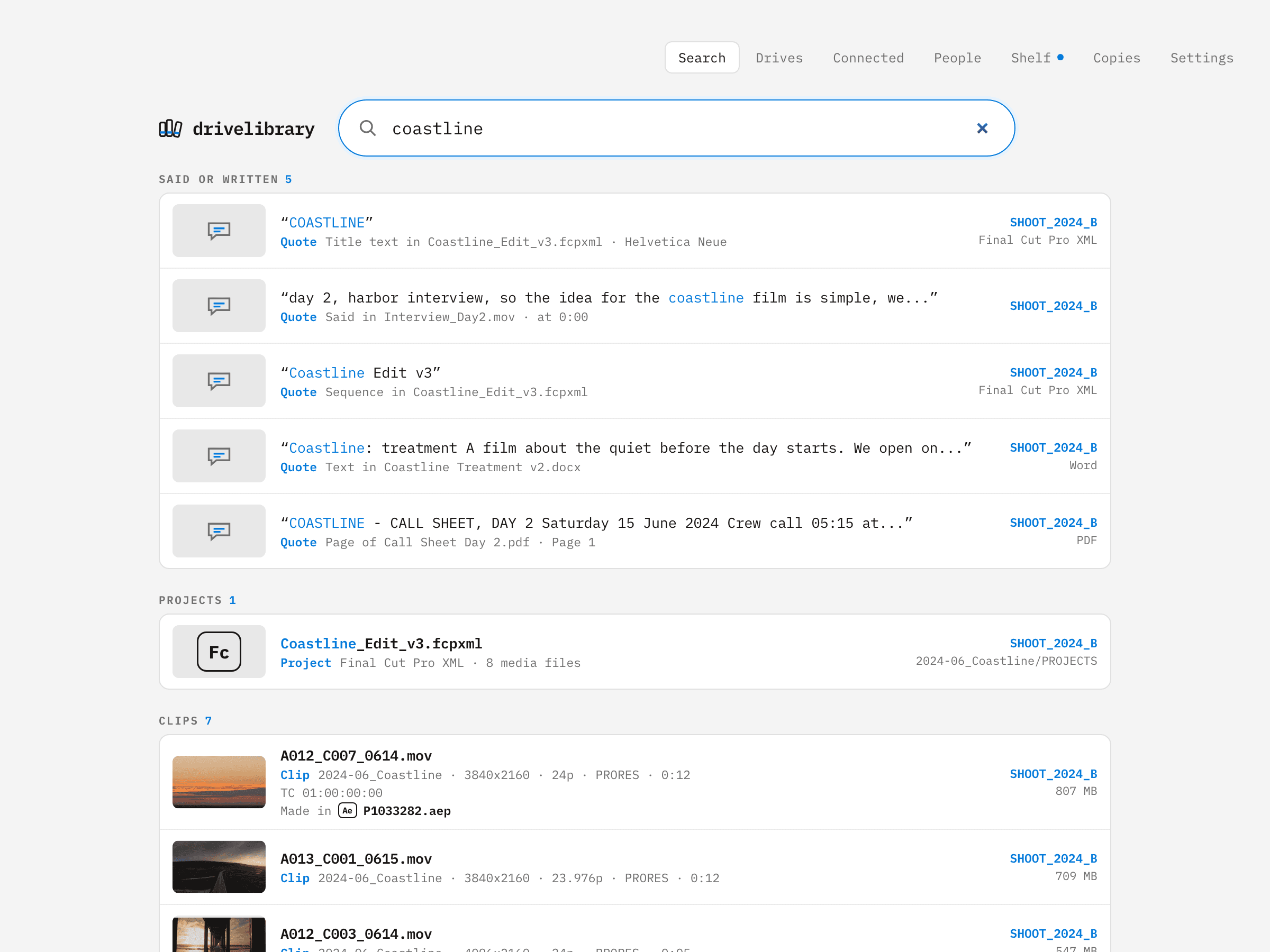
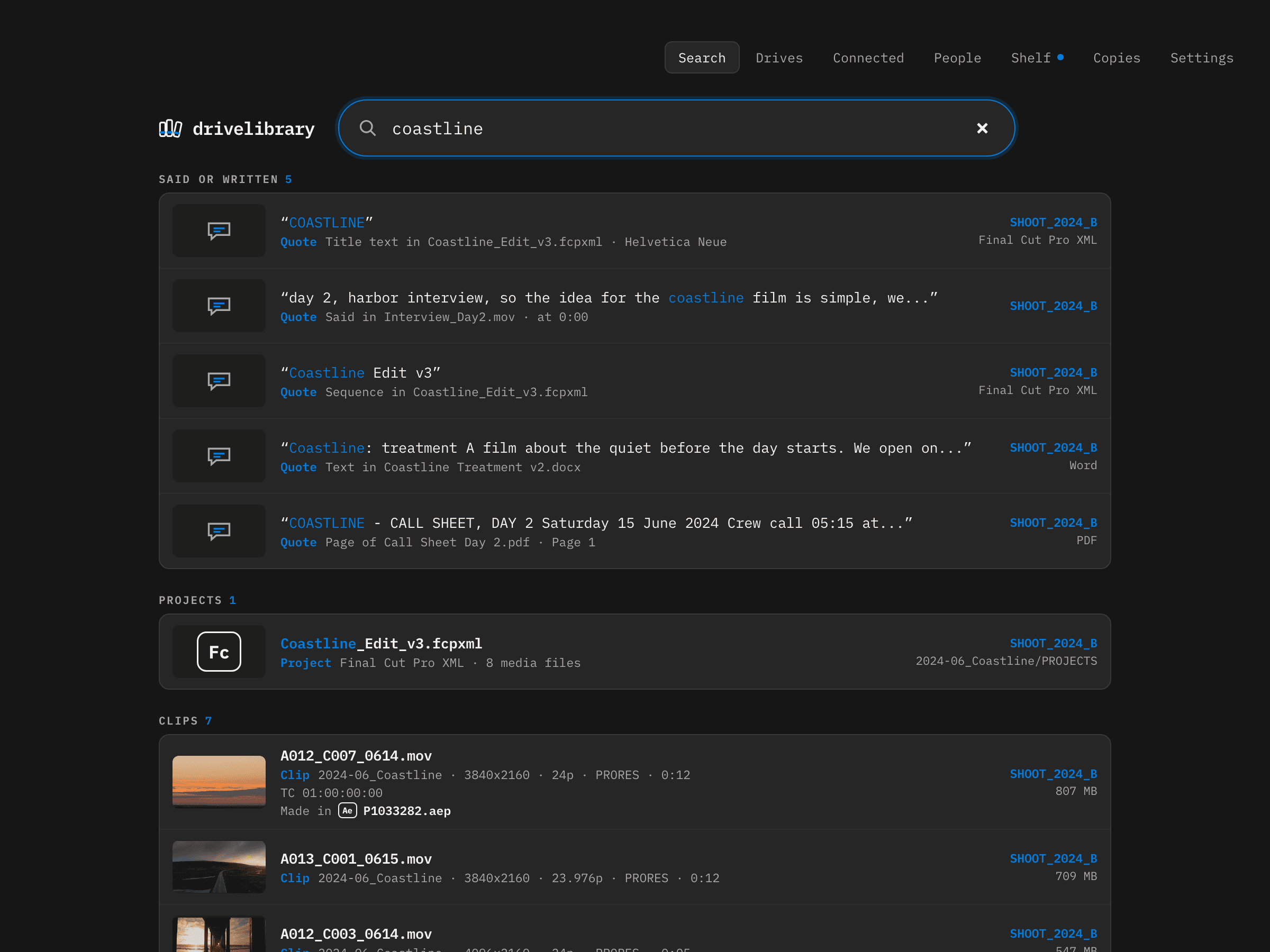
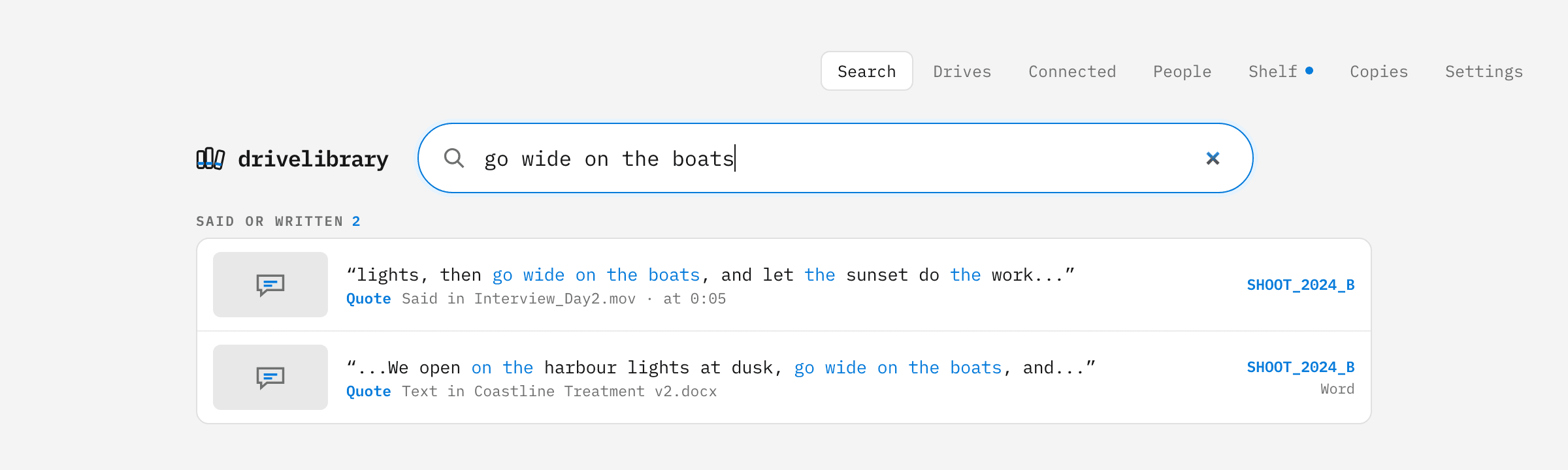
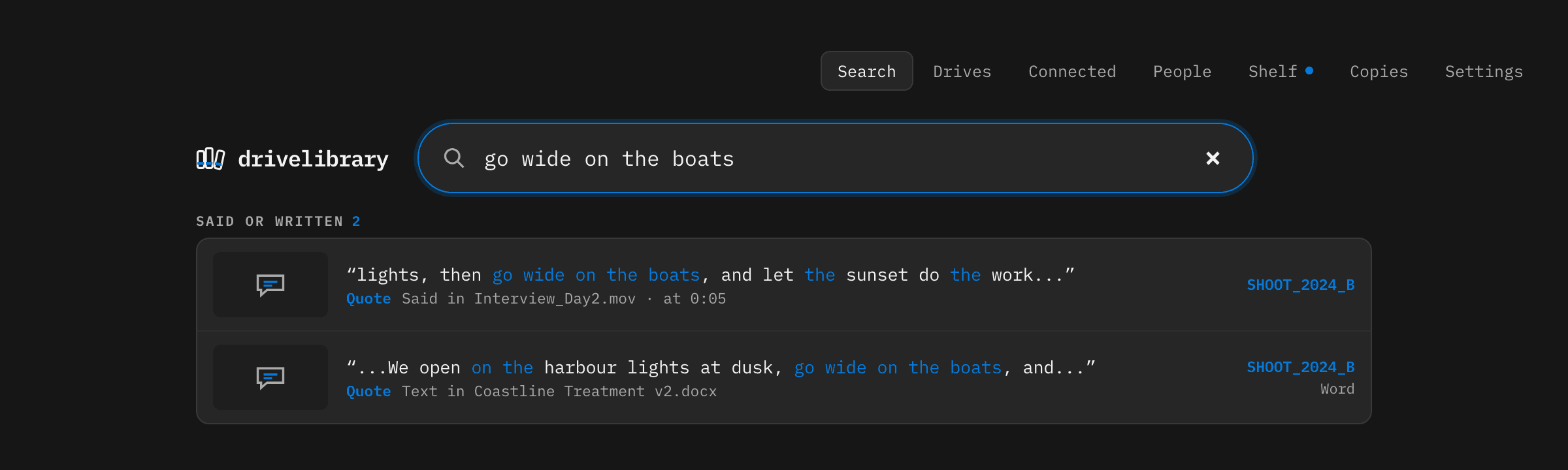
DriveLibrary searching for coastline: lines said in an interview, text in a treatment and a call sheet, a Final Cut project and clips, across the drive SHOOT_2024_B
Real screenshots of DriveLibrary. The library shown is a demo, built from licensed stock footage and photos and RIOT's own reel.

Which
drive

was

that

on?

DriveLibrary was made by RIOT, a creative agency in New York. Our own shoots live on 253 drives and four network storage boxes. We wrote tags on the drives in marker, kept a catalogue of file names, and still plugged in drive after drive to find one clip, one line of an interview, one project.

So we built the library we wanted. It reads a drive once and remembers what is inside it, not just what it is called.

Before

  • A tag in marker and a spreadsheet nobody updates
  • Five drives plugged in to find one clip
  • Scrubbing an hour of interview for one line
  • Opening a project to see what it needs
  • No idea which work exists only once

With DriveLibrary

  • Every drive tagged, placed and on its shelf spot
  • One search, with the drives back in their boxes
  • The line found, and the second it was said
  • Every clip, font and plugin a project uses, before you open it
  • The single-copy work flagged, so it gets copied

See it

One
library

for
every
drive

on

the
shelf.

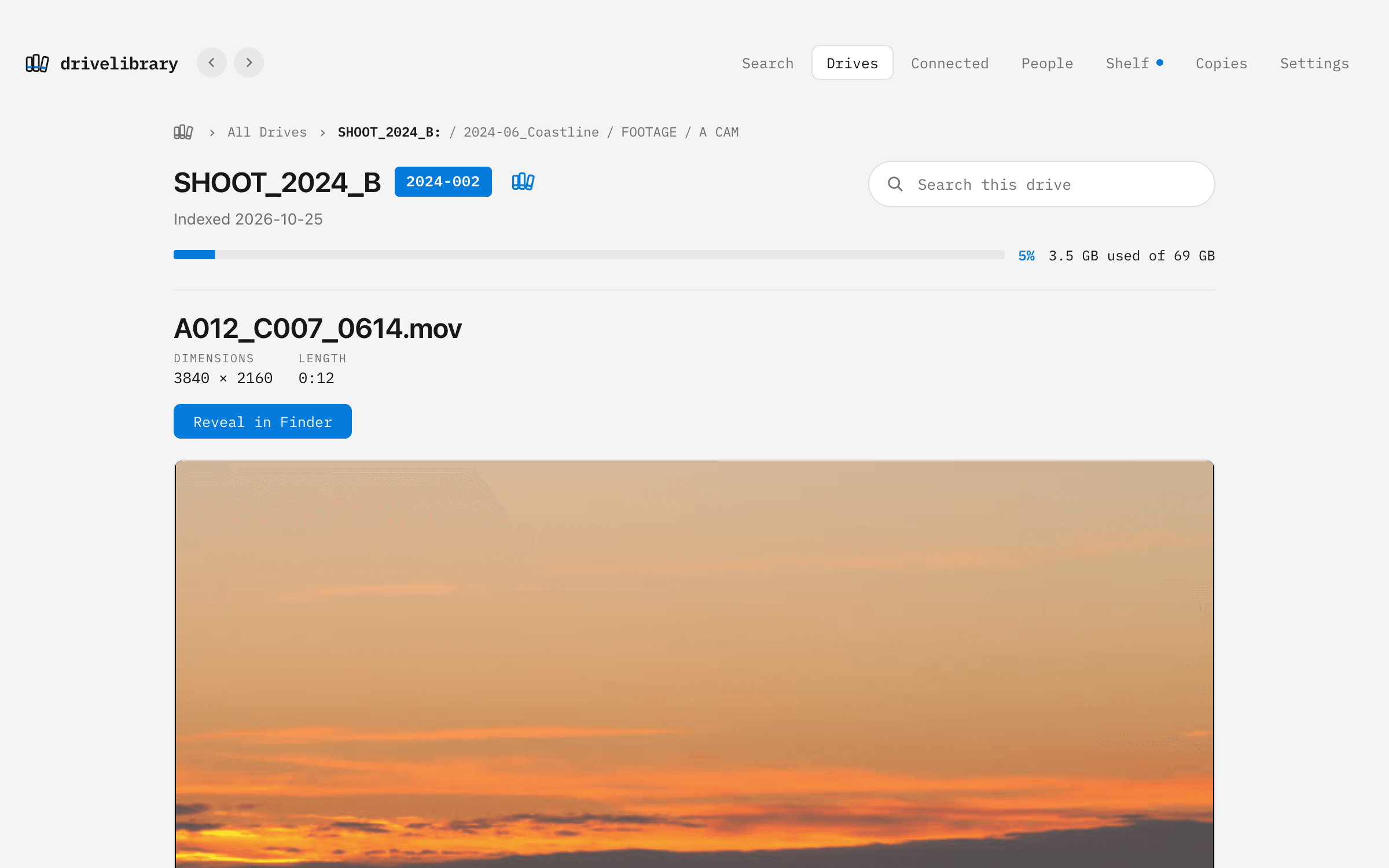
Inside every clip

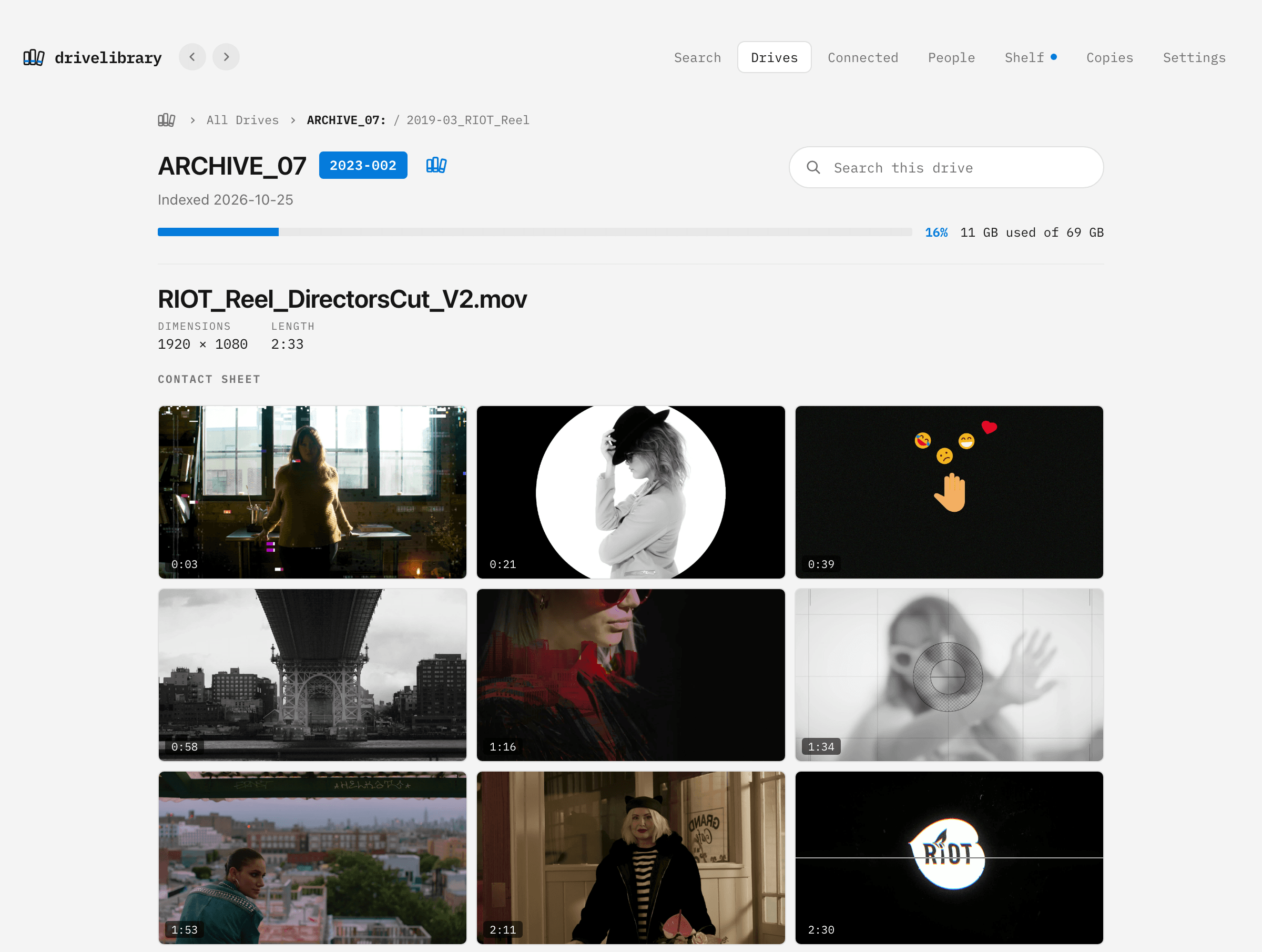
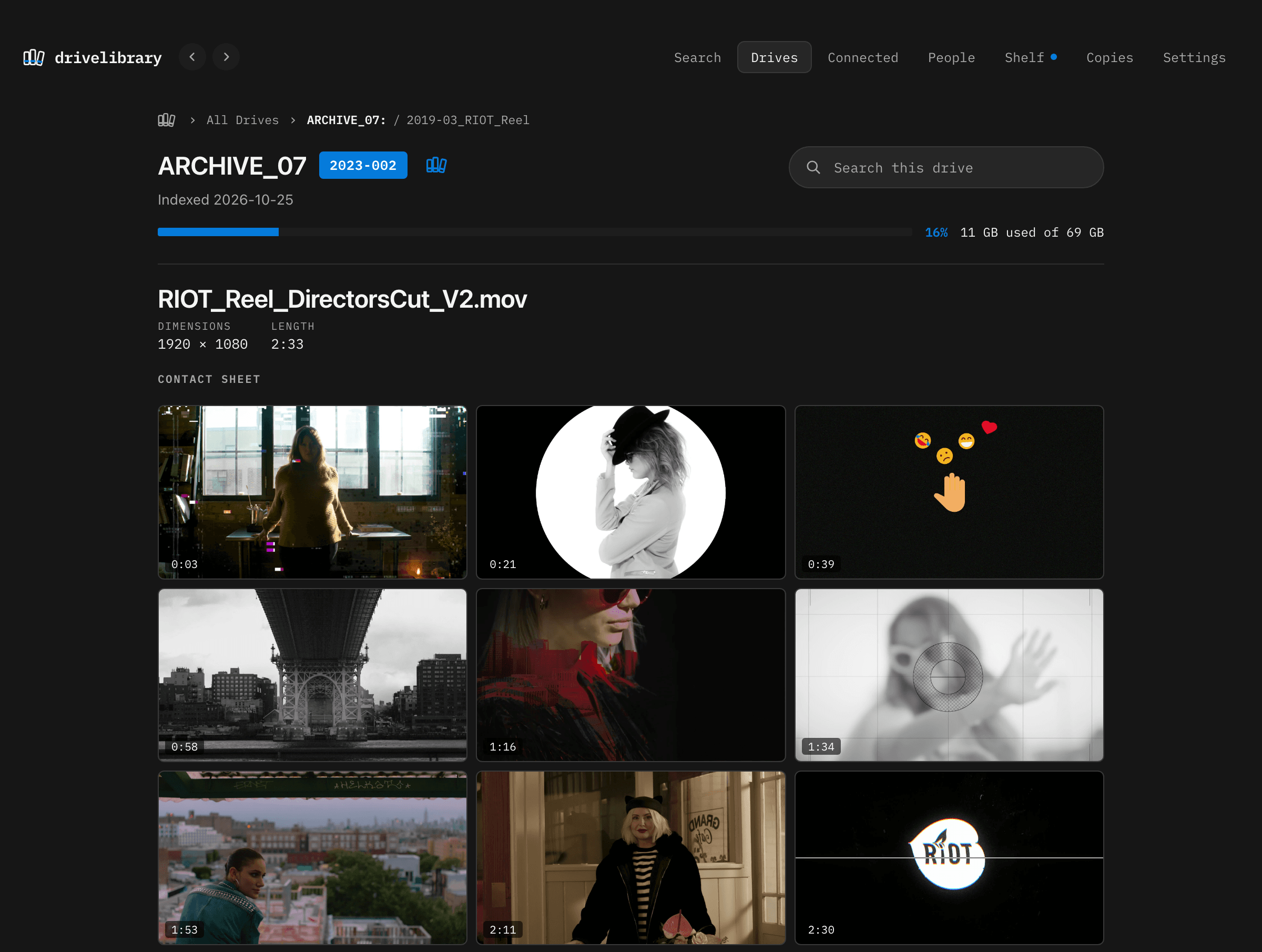
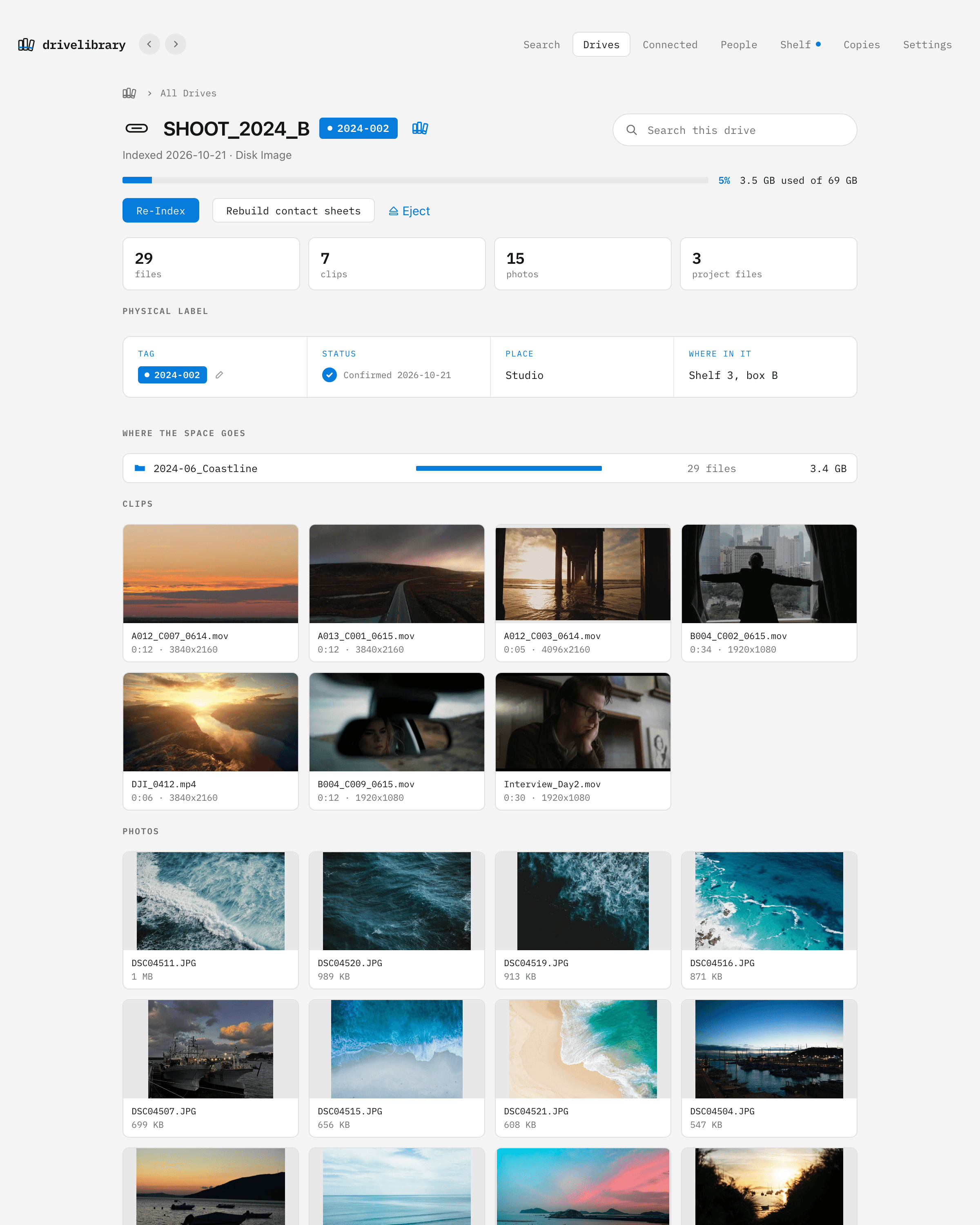
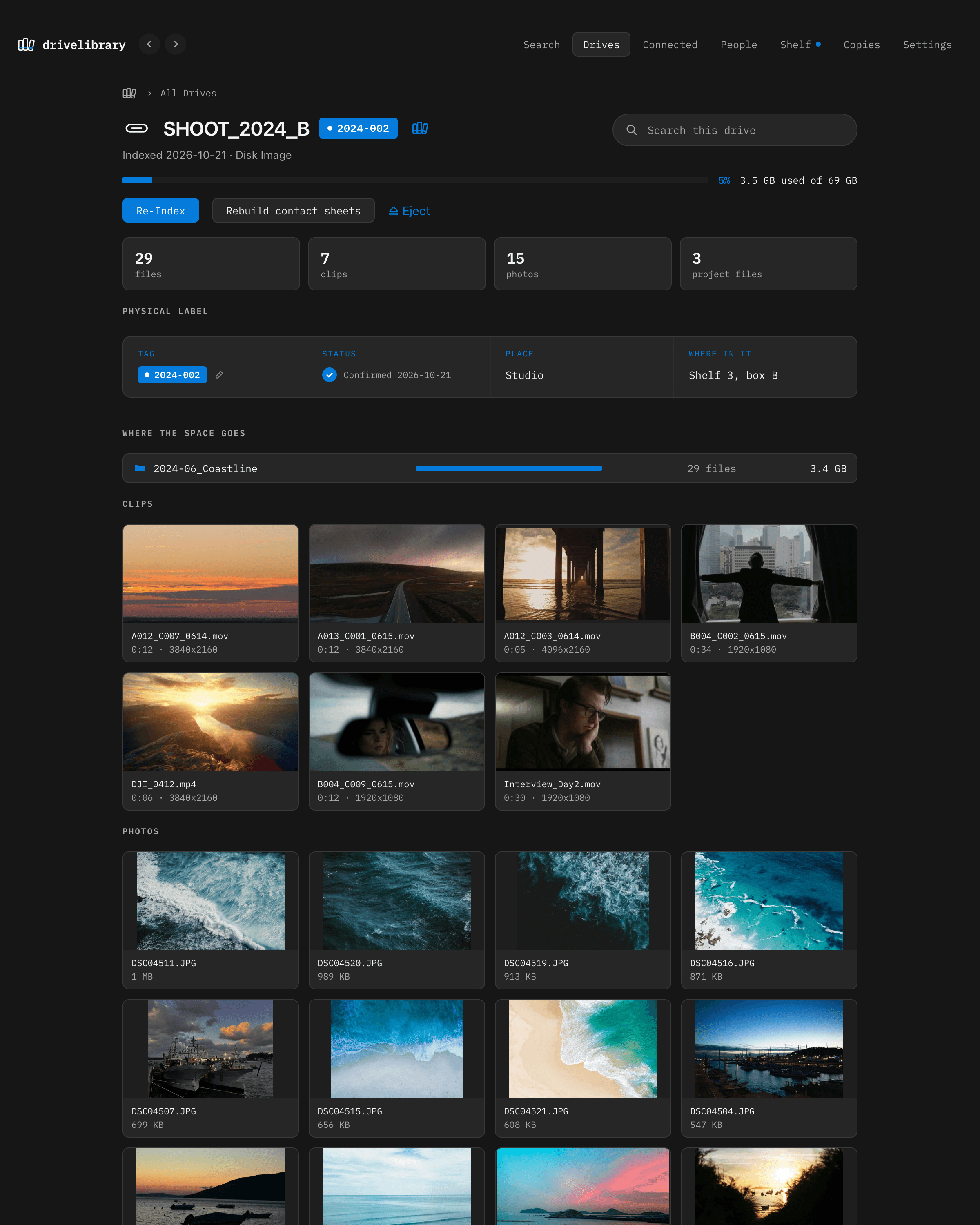
Nine frames from every clip, with the drive on the shelf

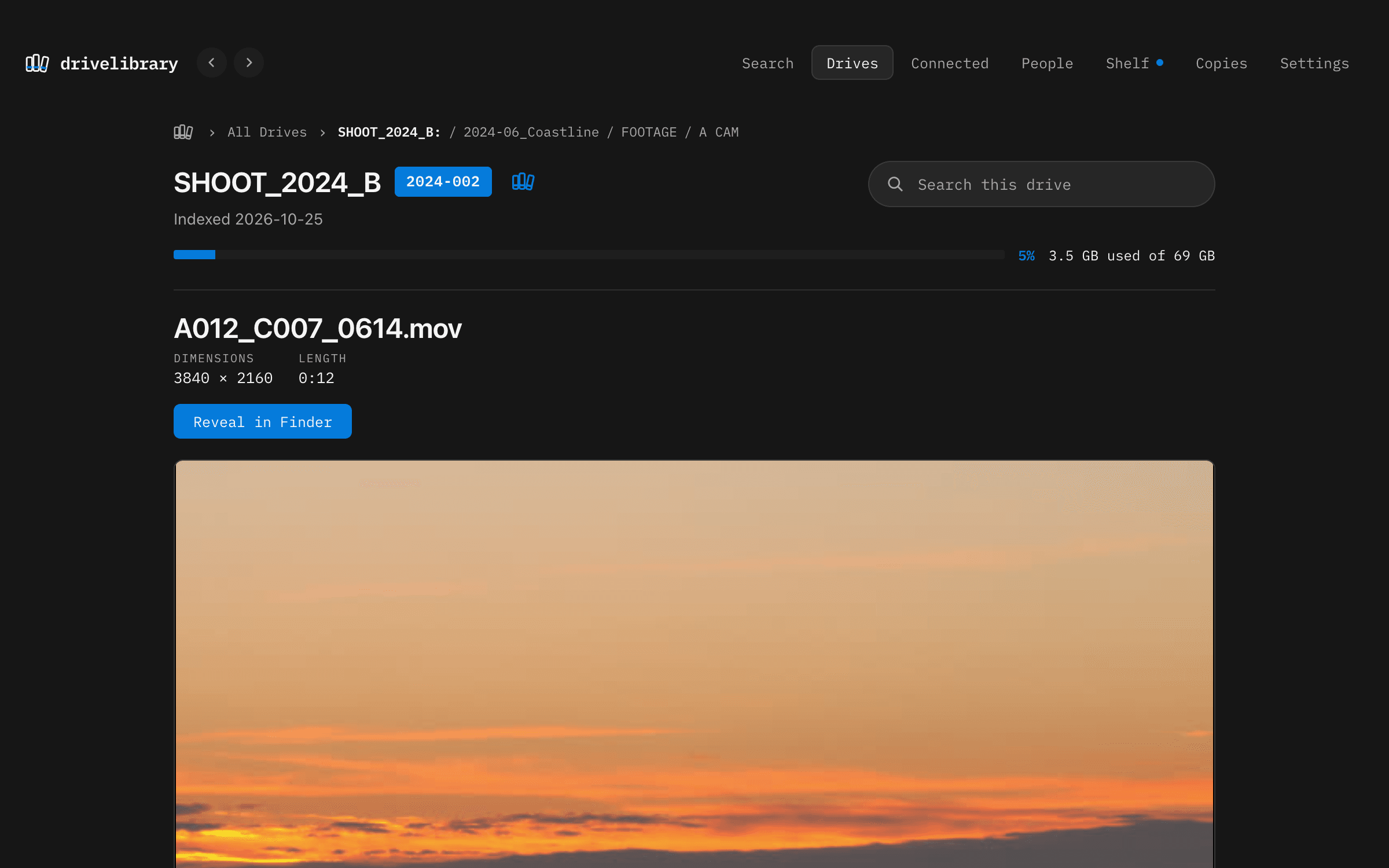
Every clip gets a contact sheet you can open, enlarge and save, long after the drive has gone back in its box. Plug the drive in and the clip plays right there, even the ones macOS cannot: for R3D, BRAW and MXF, DriveLibrary makes a playable copy on your Mac.

DriveLibrary: Nine frames from every clip, with the drive on the shelf

What was said

Find the line, not just the file

Search a phrase and land on the second it was said in an interview, or the page it was written on in a treatment.

DriveLibrary: Find the line, not just the file

Inside the projects

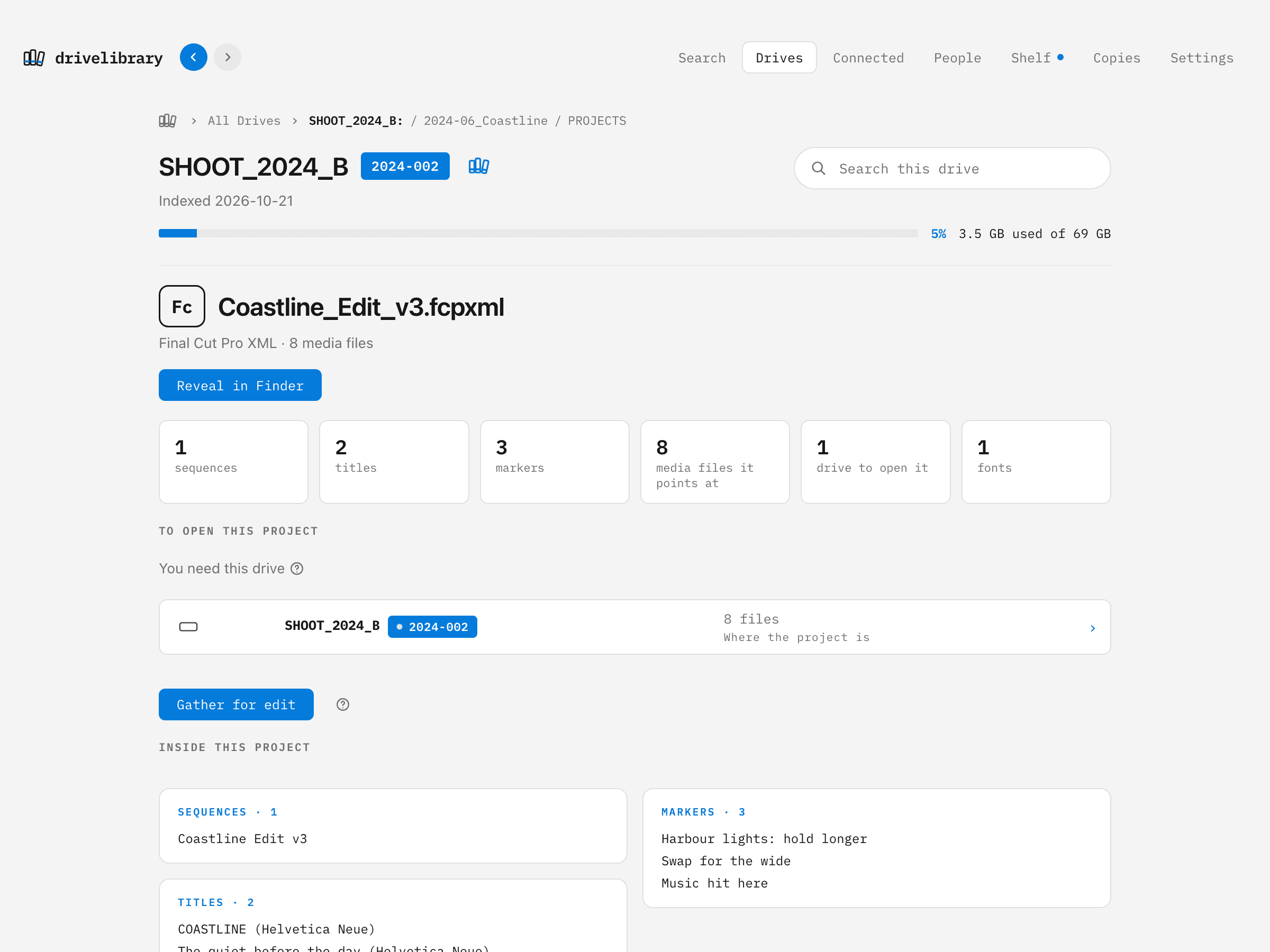
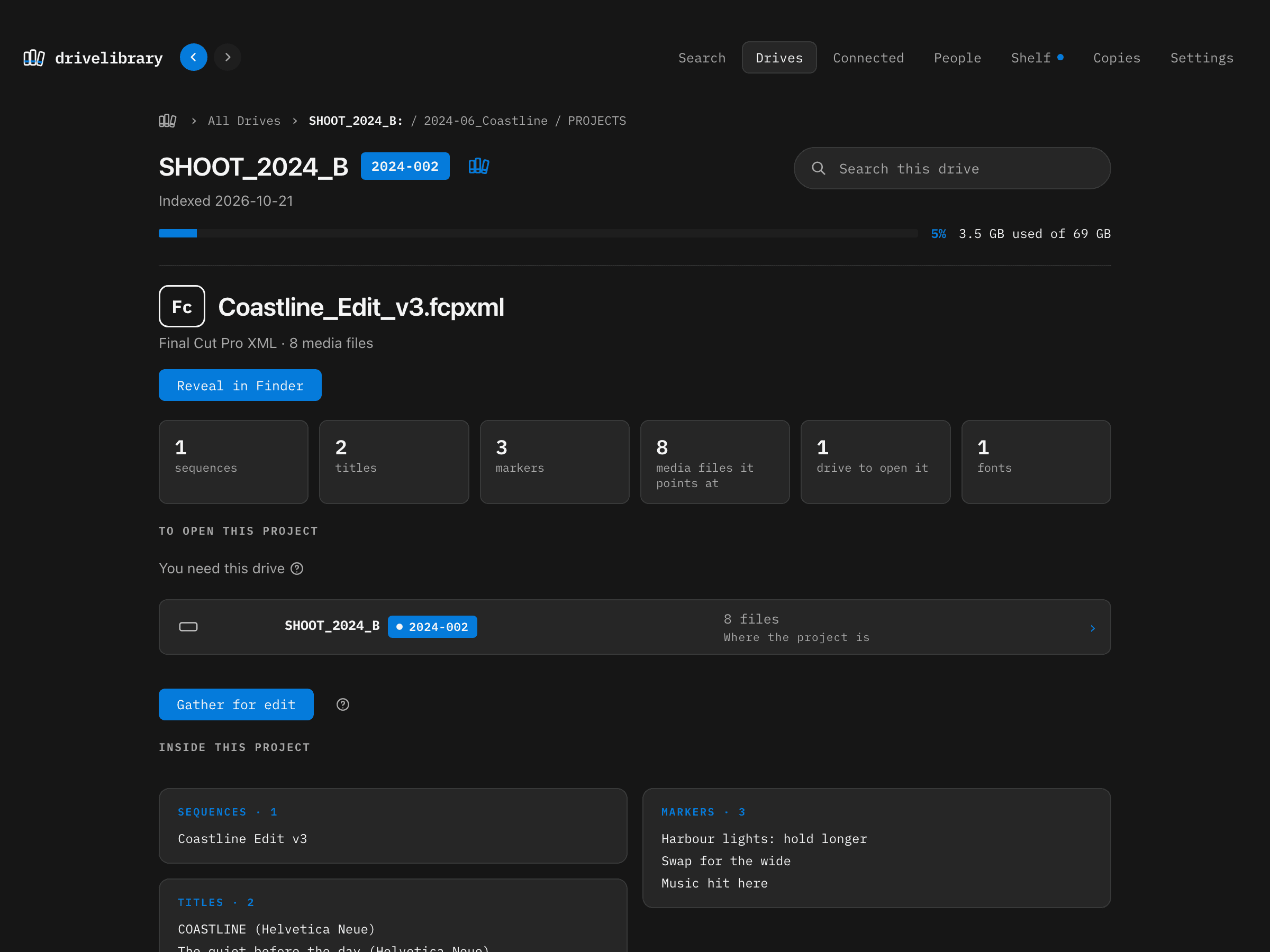
See what a project needs before you open it

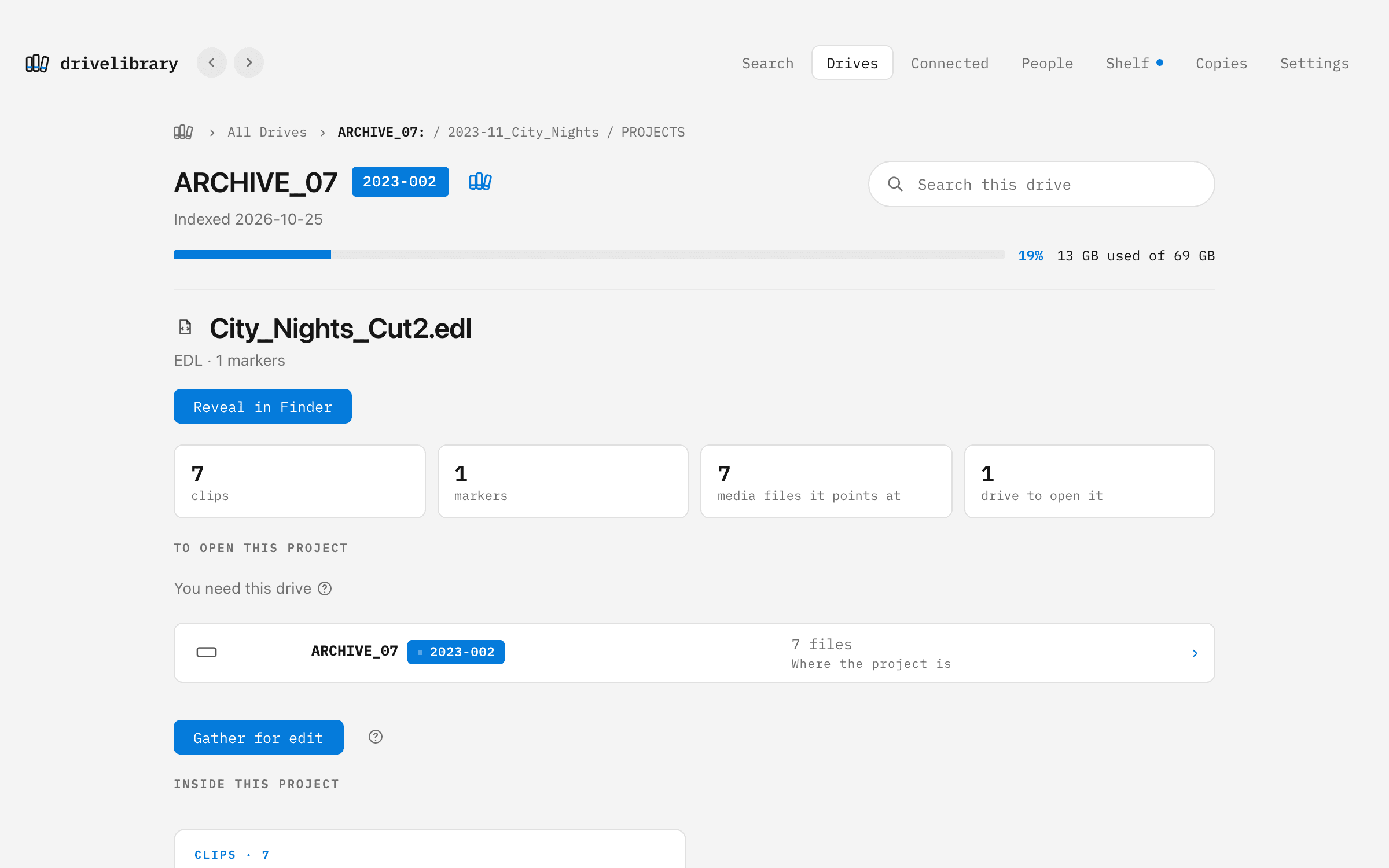
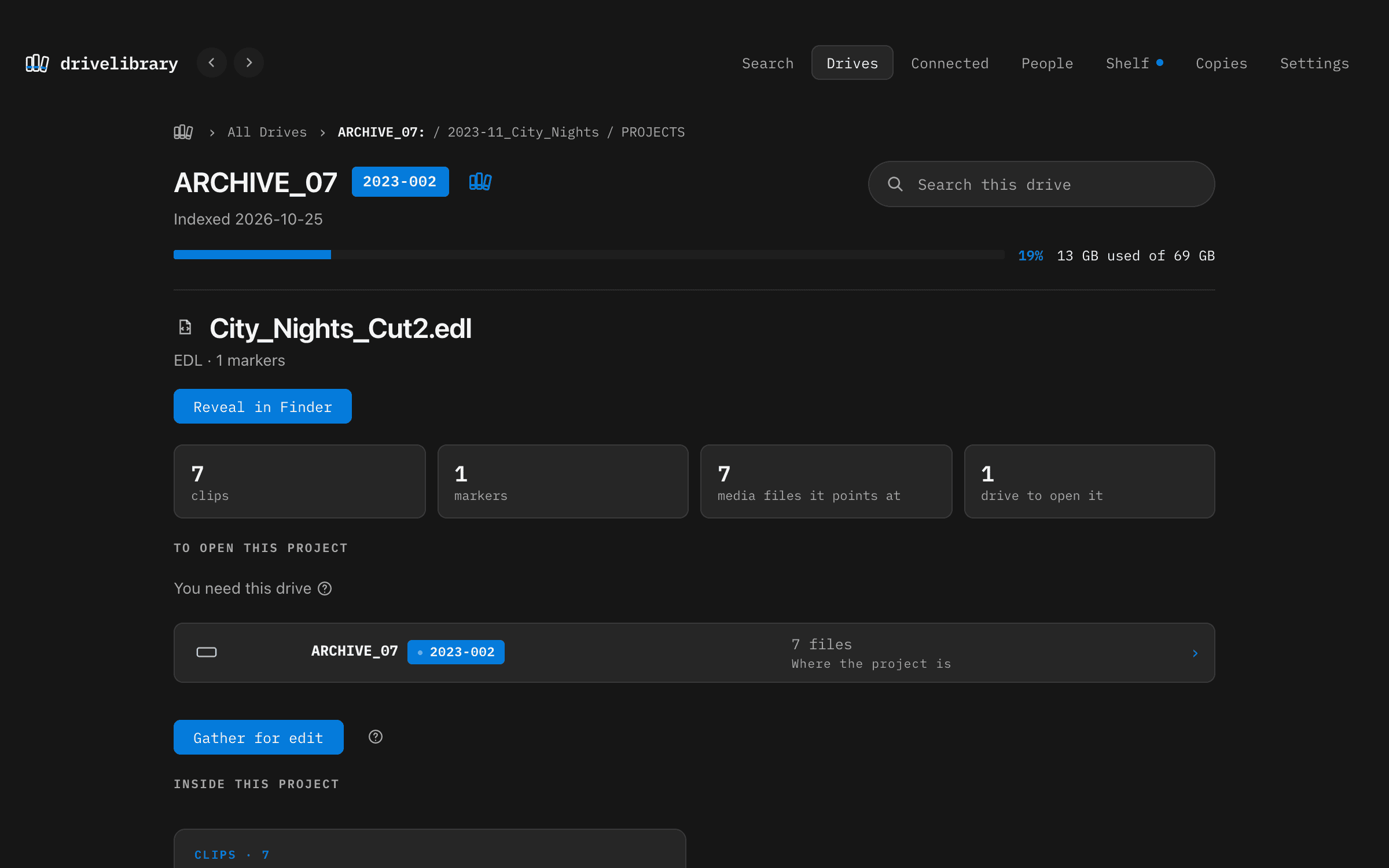
Its titles, markers and sequences, every clip it uses, and which drive or drives have to be plugged in to open it. Search reads inside projects too, so a marker note or a line of title text takes you straight to the project it is in.

DriveLibrary: See what a project needs before you open it

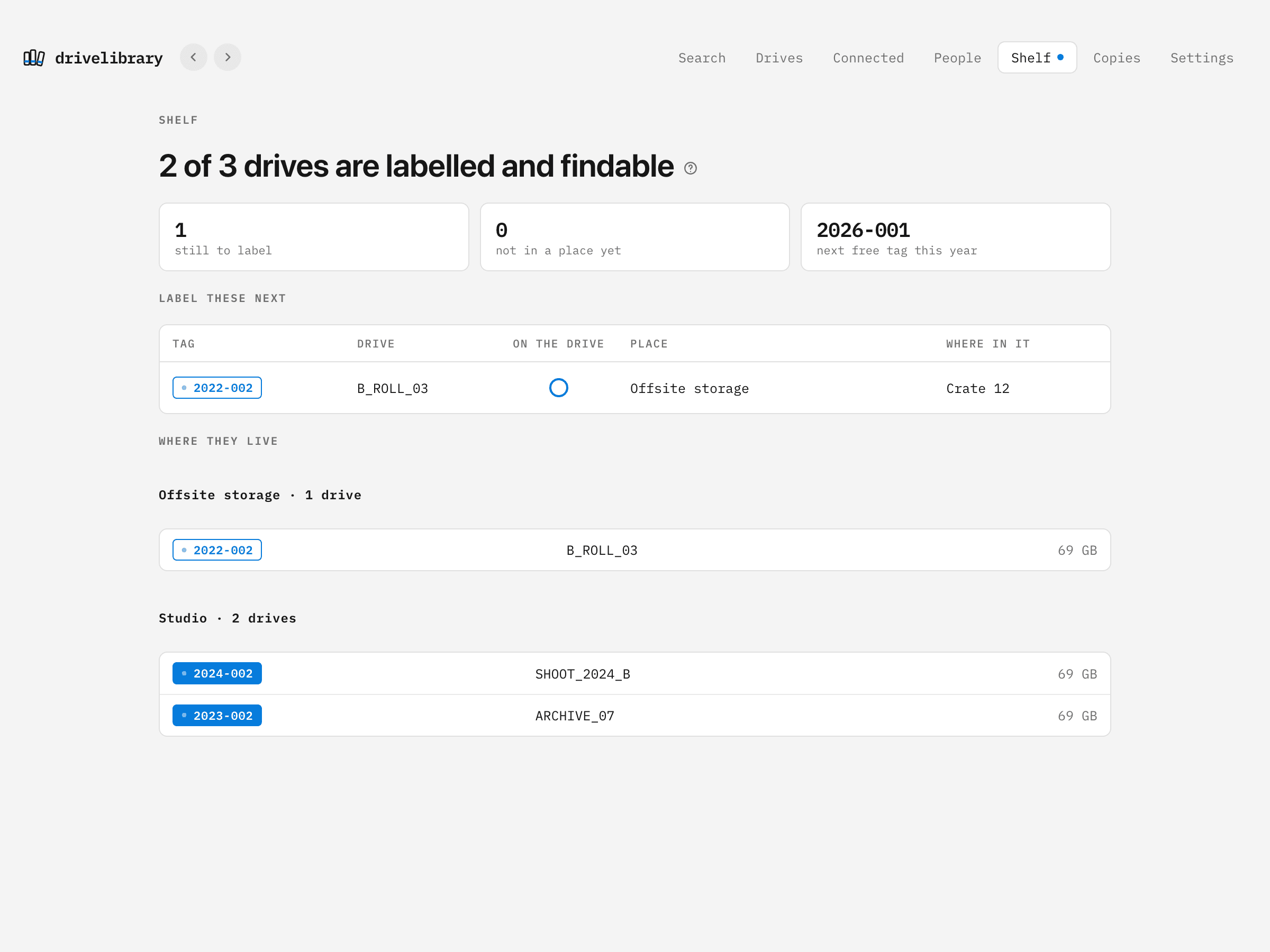
Label it

Every drive tagged, confirmed and on its shelf

DriveLibrary suggests the next tag in your series. Write it on the drive, then confirm it by typing the tag back, so nothing is marked by accident. Add the place it lives, like the office or storage unit and its address, and its spot inside, like Locker 3, shelf 2. Its clips and photos stay searchable with the drive unplugged, and you know exactly where to go to get it.

DriveLibrary: Every drive tagged, confirmed and on its shelf

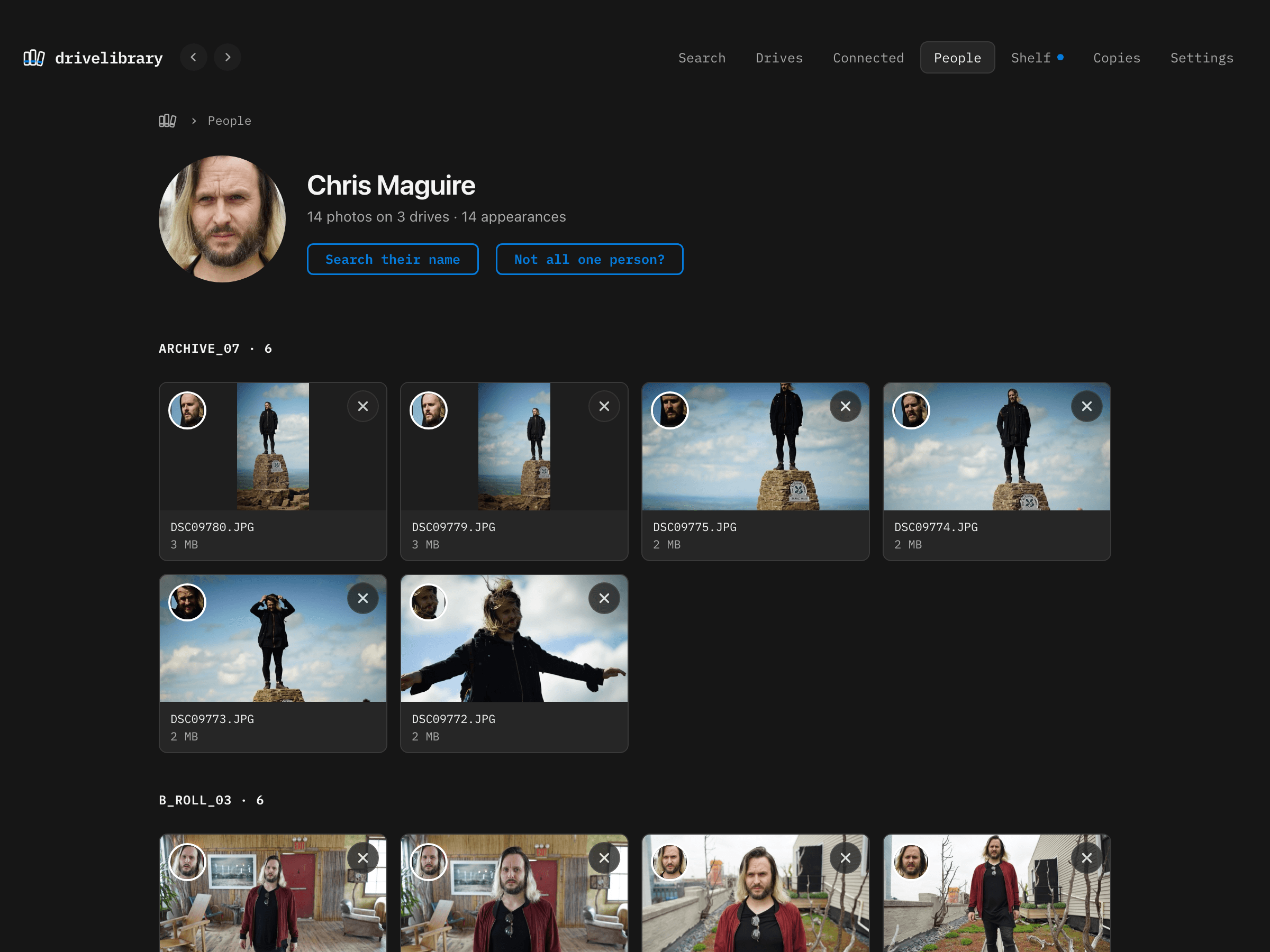
Who is in it

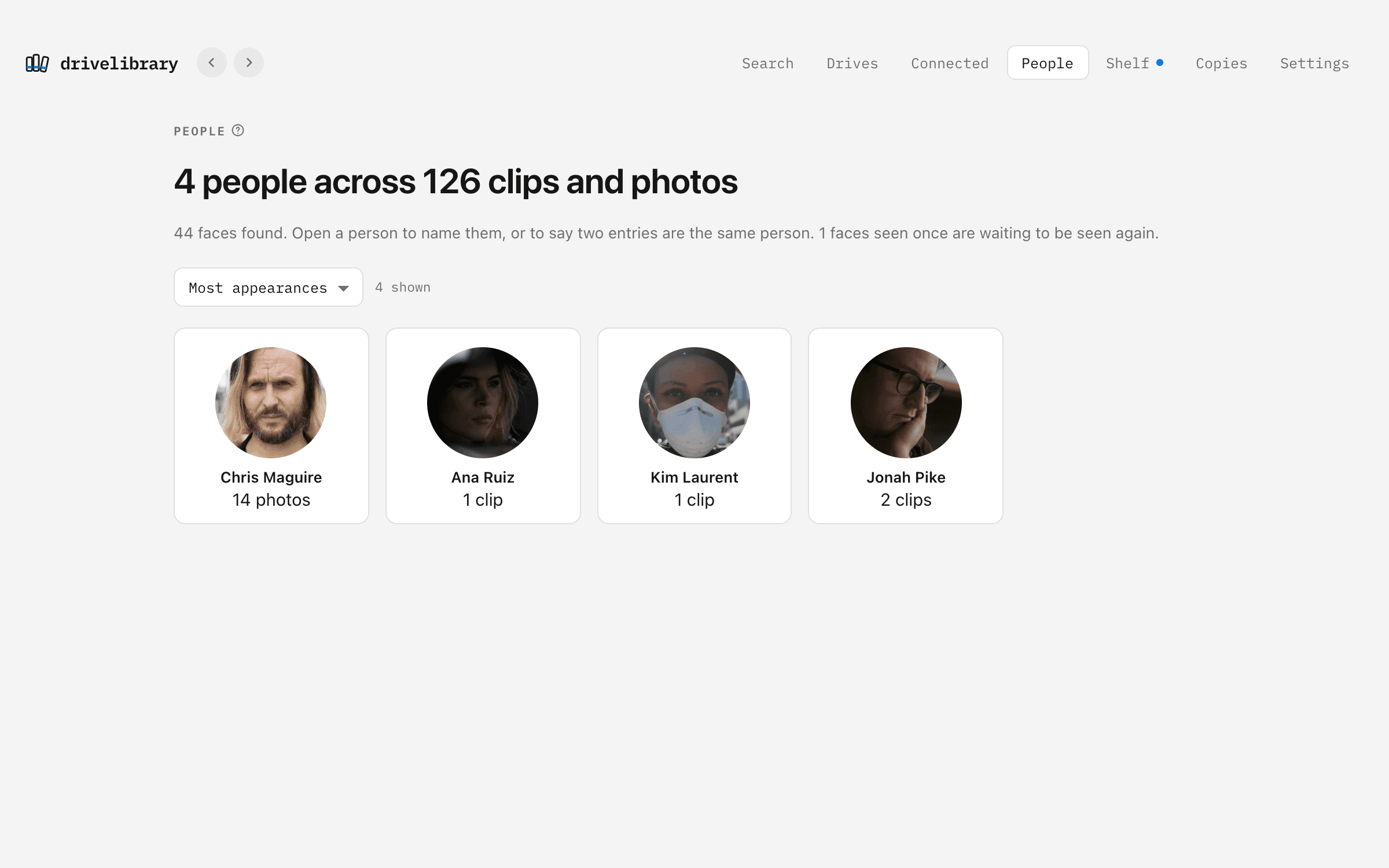
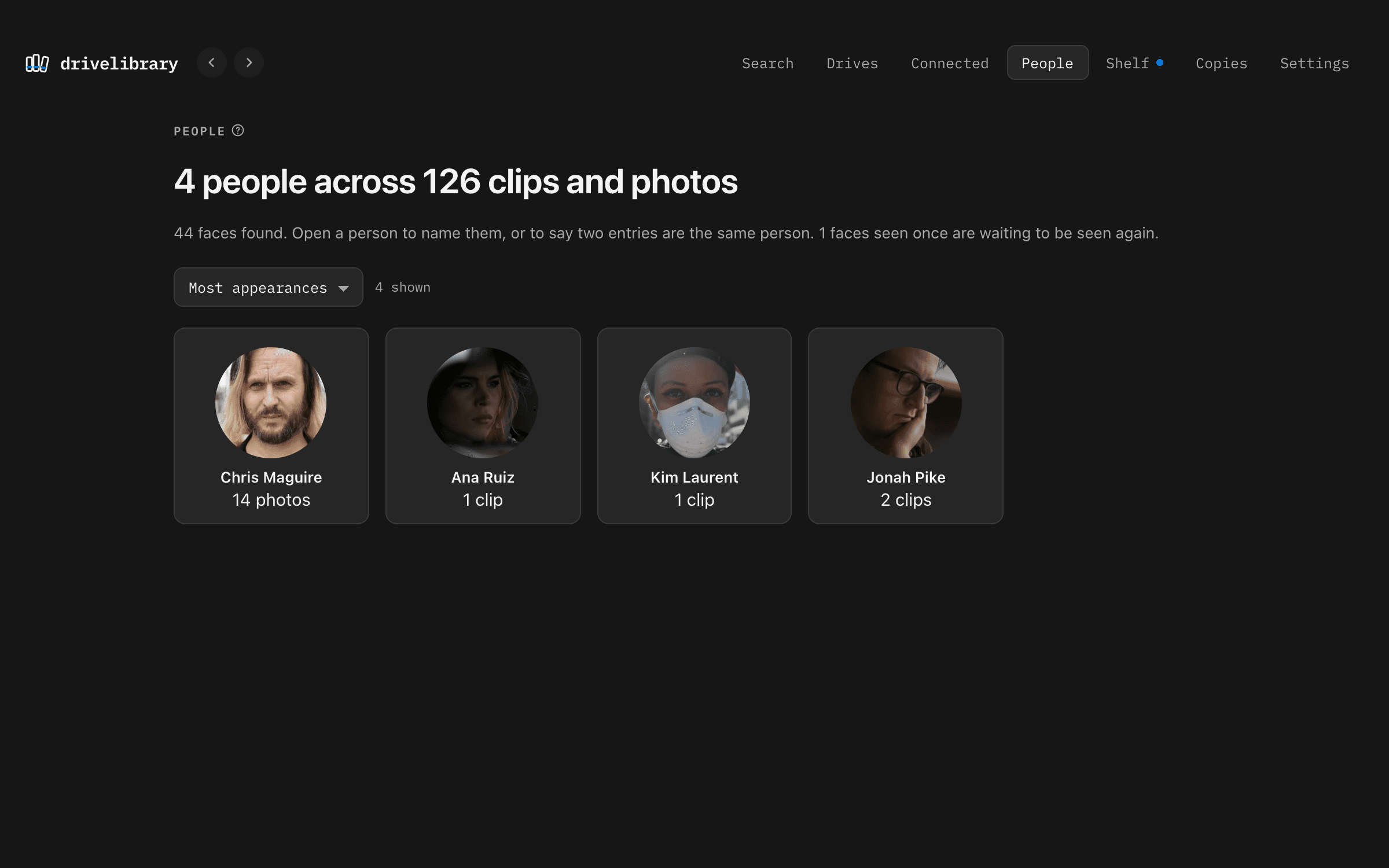
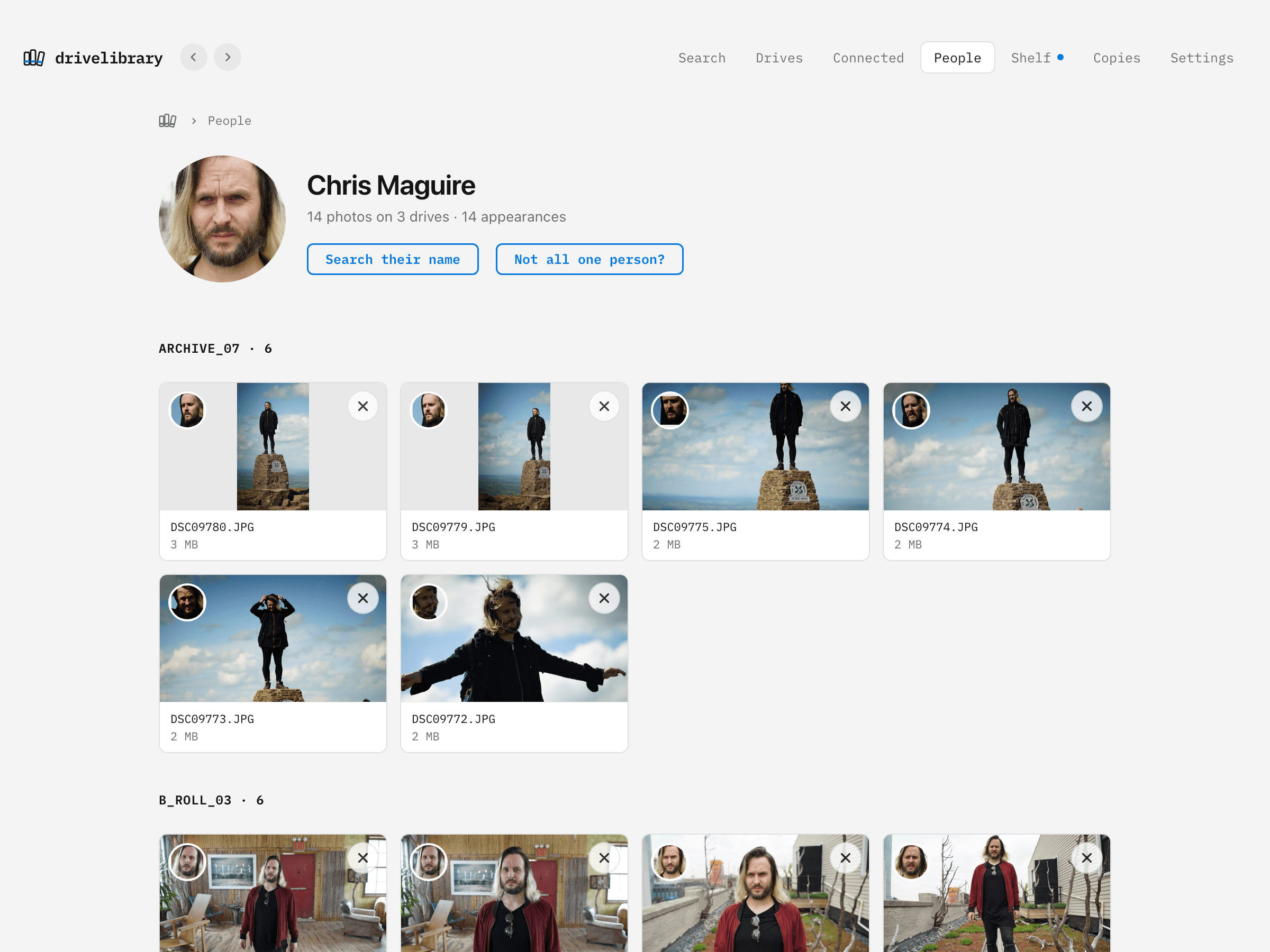
Everyone, across every drive

Faces grouped by likeness and named by you, on your Mac. Take out a wrong one with a click.

DriveLibrary: Everyone, across every drive

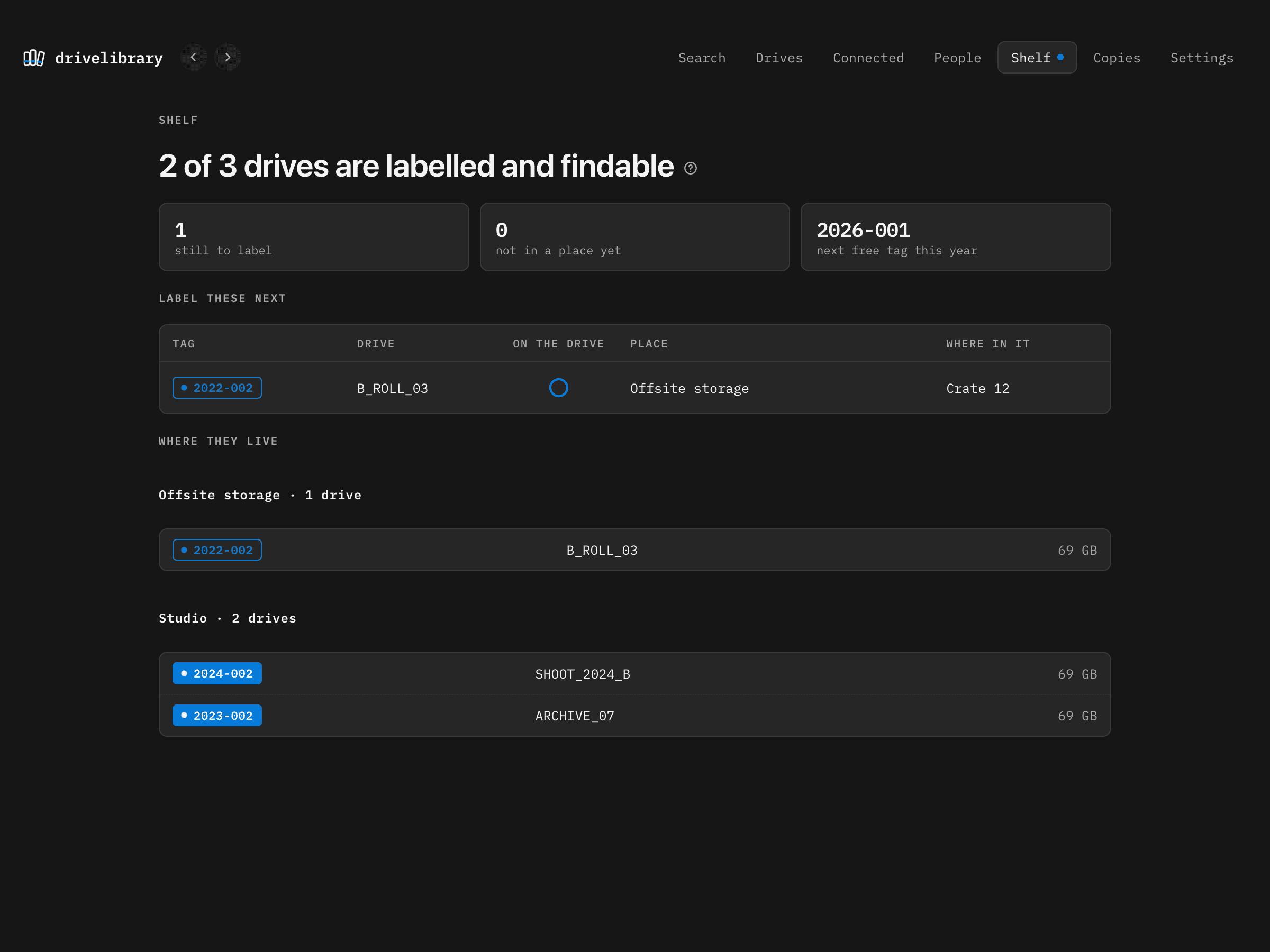
The shelf

What still needs a label, and where every drive lives

Drives grouped by where they are, and the ones still to label first, so a box of drives gets done in an afternoon.

DriveLibrary: What still needs a label, and where every drive lives

What it reads

More
than
any
catalogue.

It

looks

inside.

DriveLibrary: A clip on its drive: playing in the app, with its contact sheet

Footage

Every clip, looked at properly

  • Nine frames from every clip as a contact sheet, kept big enough to enlarge
  • R3D and BRAW decoded with the camera makers' own decoders and shown in proper colour, not flat log
  • MXF, ProRes, MPEG-2, AVI, DXV and the rest played in the app, with a playable copy made on your Mac when macOS can't
  • Image sequences as the one shot they are: range, frame count, missing frames
  • The sound of every clip kept, so it can be heard and searched with the drive unplugged
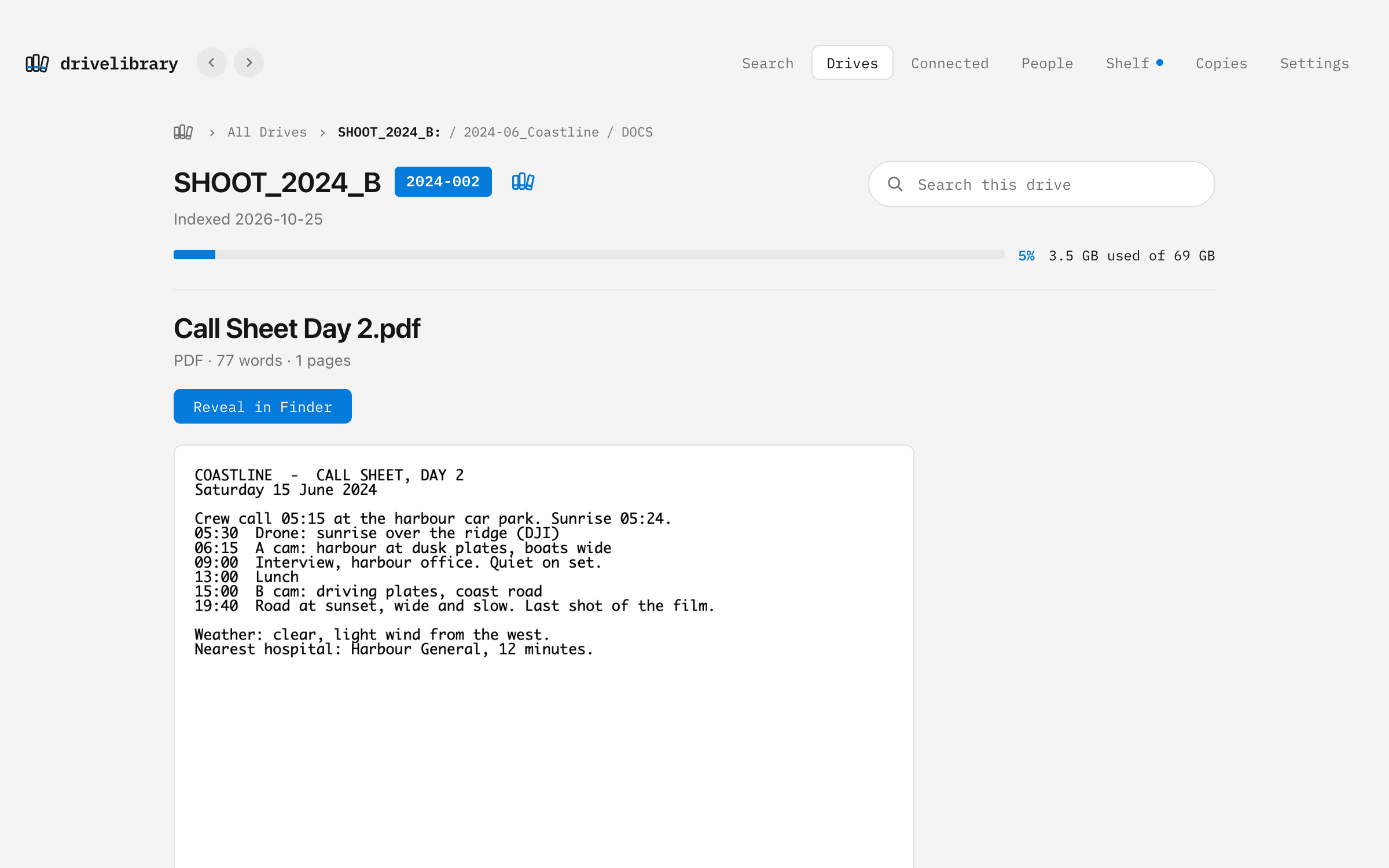
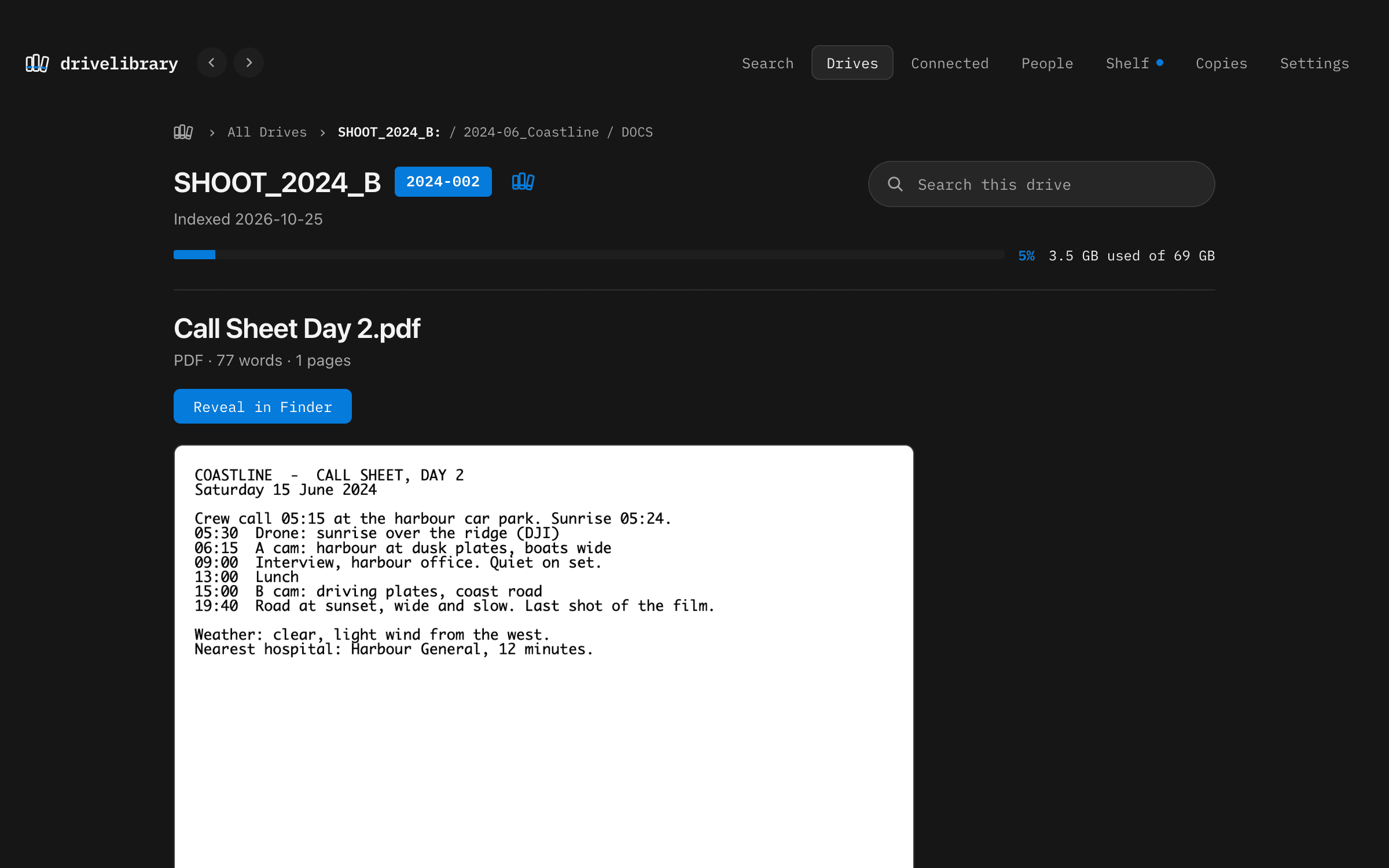
DriveLibrary: The words inside a call sheet PDF, read and searchable

Words

Search what is inside, not just file names

  • Everything said on camera, transcribed on your Mac, found to the second
  • The text inside PDF, Word, Pages, Keynote, PowerPoint, Excel and Numbers files, old and new, TextEdit, Markdown and plain text
  • Final Draft and Fountain scripts, scene by scene; saved web pages; emails; and the Apple Notes on an old Mac's drive
  • Subtitles and captions, Finder tags and comments, and where each file was downloaded from
  • Search a line of dialogue, a client's name in a deck, or a word in a title card
DriveLibrary: An EDL opened: its clips, markers and the drive it needs

Projects

Inside the project files

  • Premiere Pro: titles, markers, captions, the transcripts Premiere made, and every clip used
  • After Effects: comps, layers, text layers and the render queue
  • Pro Tools, Ableton Live, Audition, Motion, Nuke, motion graphics templates, Photoshop, Illustrator, InDesign, Sketch and Lightroom
  • Final Cut XML, EDL and ALE
  • Which drives a project needs before anyone opens it, which projects used a clip, every font and plugin a project depends on
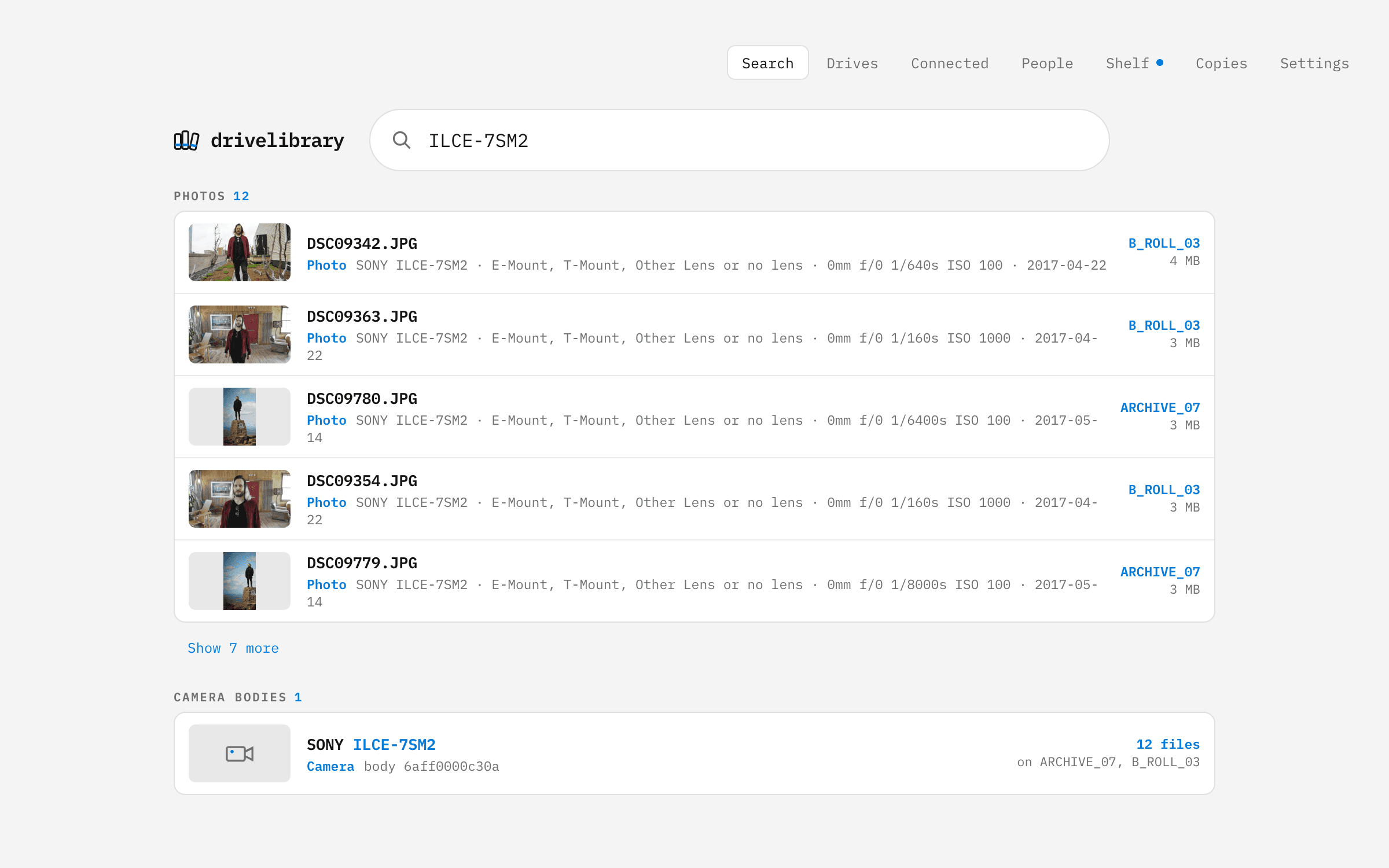
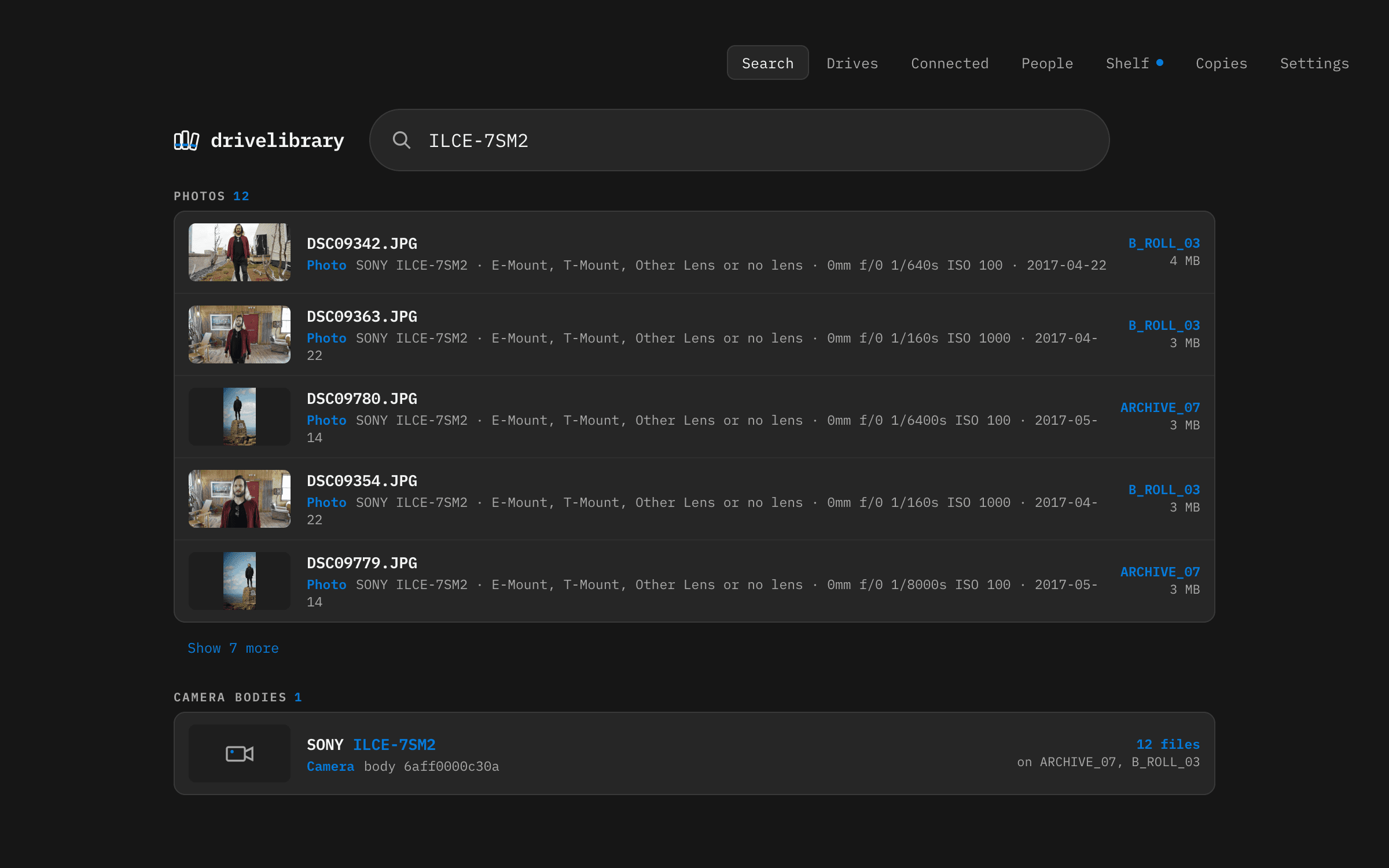
DriveLibrary: A search for one camera body: every photo it took, with lens, shutter and ISO

Camera

What the camera knew

  • Camera, serial number, lens, ISO, white balance, shutter, gamma and gamut
  • Timecode, reel, and the frame rate it was shot at, so slow motion is marked
  • The sidecar files cameras write beside the clips, and the checksums taken when the card was offloaded
  • All of it searchable: find every clip from one camera body, or everything shot in one log
DriveLibrary: Everyone in the library, grouped by face

People

Who is in it

  • Faces found in every clip and photo, grouped by likeness, named only by you
  • Confirm one face and the rest of that burst of stills comes with it
  • Before a group gets a name you see whether it might be more than one person, so brothers, sisters and children are not filed as one
  • Face data never leaves your Mac, and can be switched off or deleted
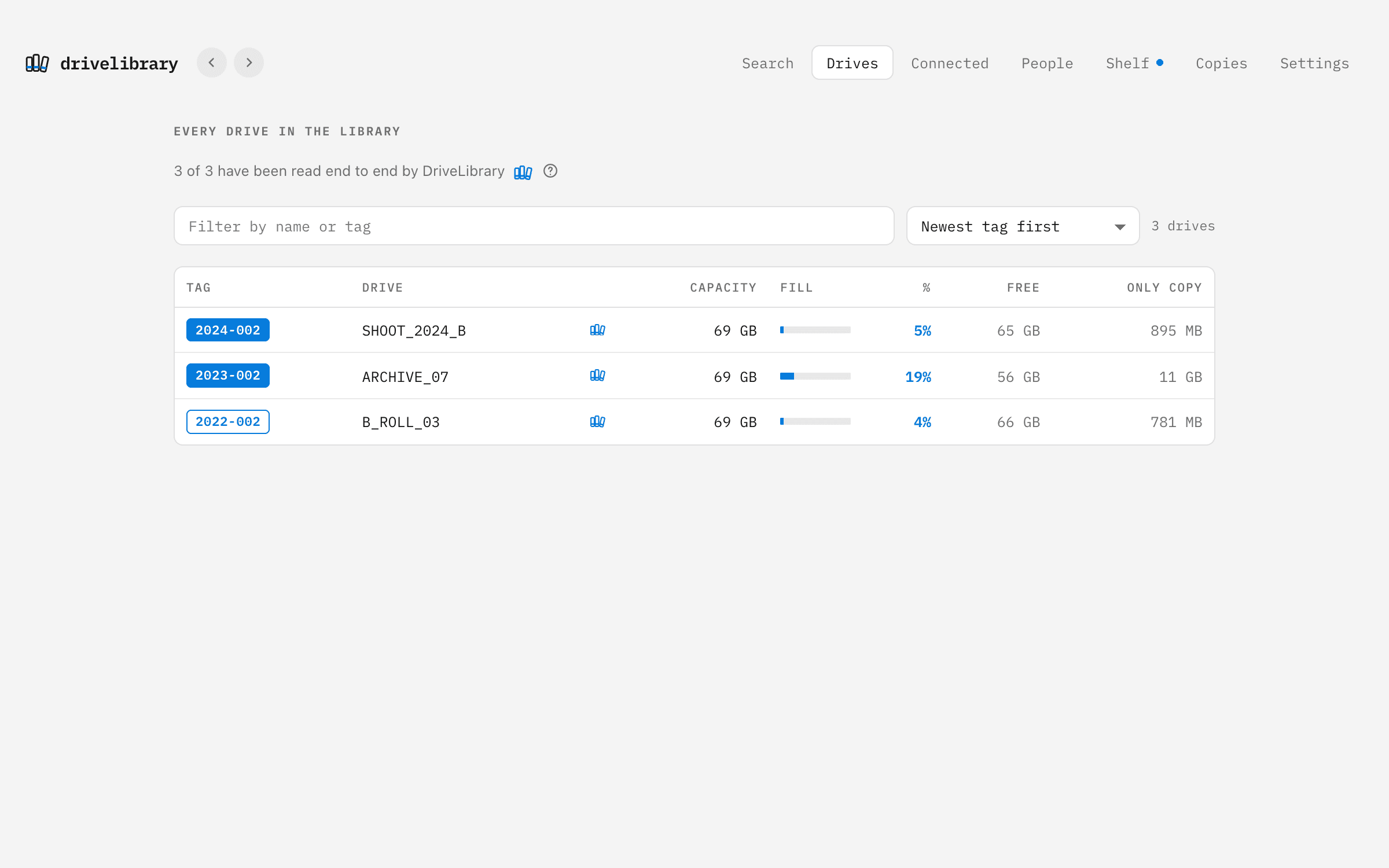
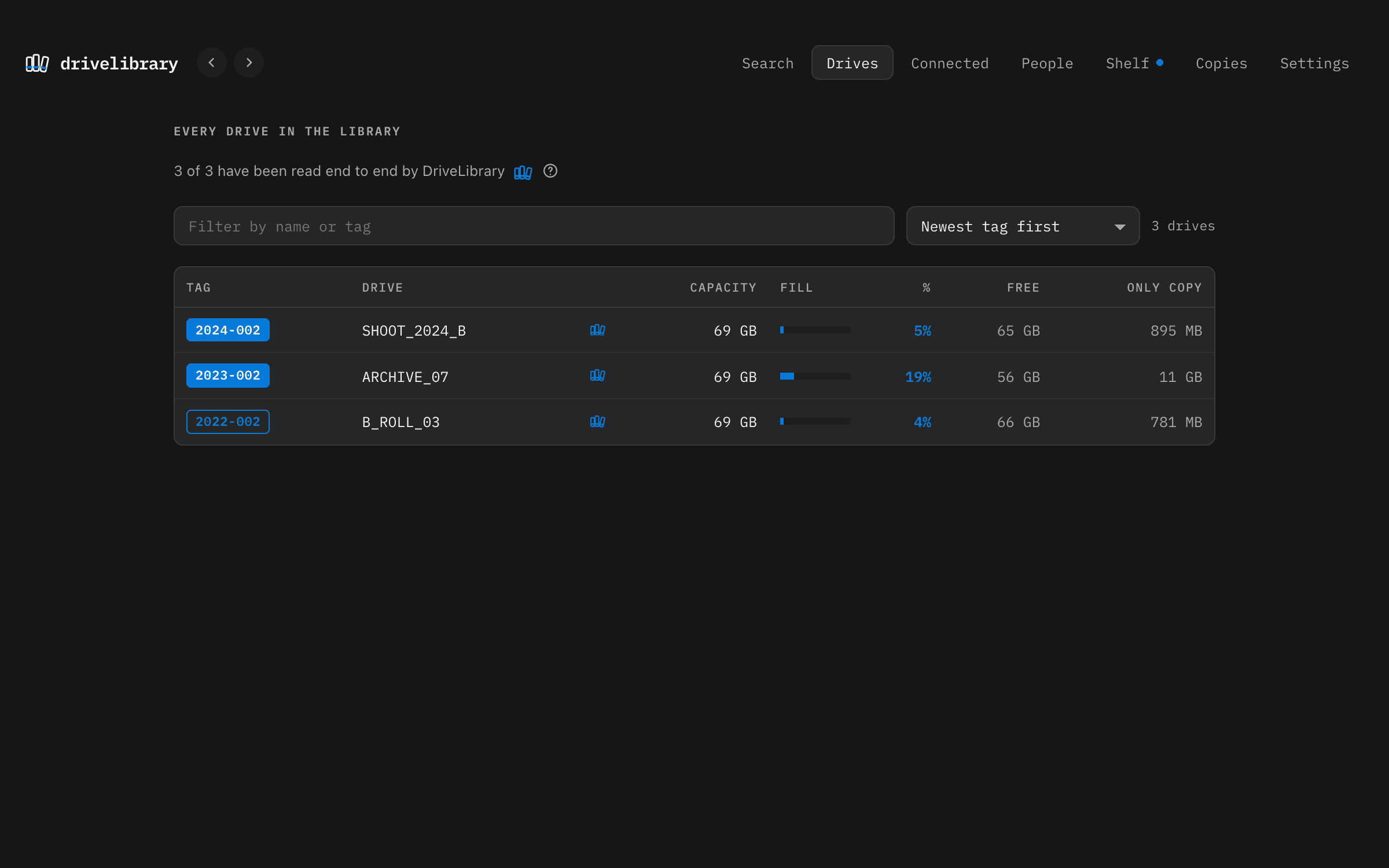
DriveLibrary: Every drive in the library, with its tag, fill and work that exists only on it

Drives

The drives themselves

  • Model, serial number, health and the hours it has run, read from the disk wherever its enclosure passes them on
  • A tag for every drive in order for its year, its place and its spot on the shelf, and a check that the label is really on it
  • Network storage under the NAS it lives on, recognised by the box itself, so renaming a share changes nothing
  • What changed since the drive was last read, and a full check of every byte that writes nothing
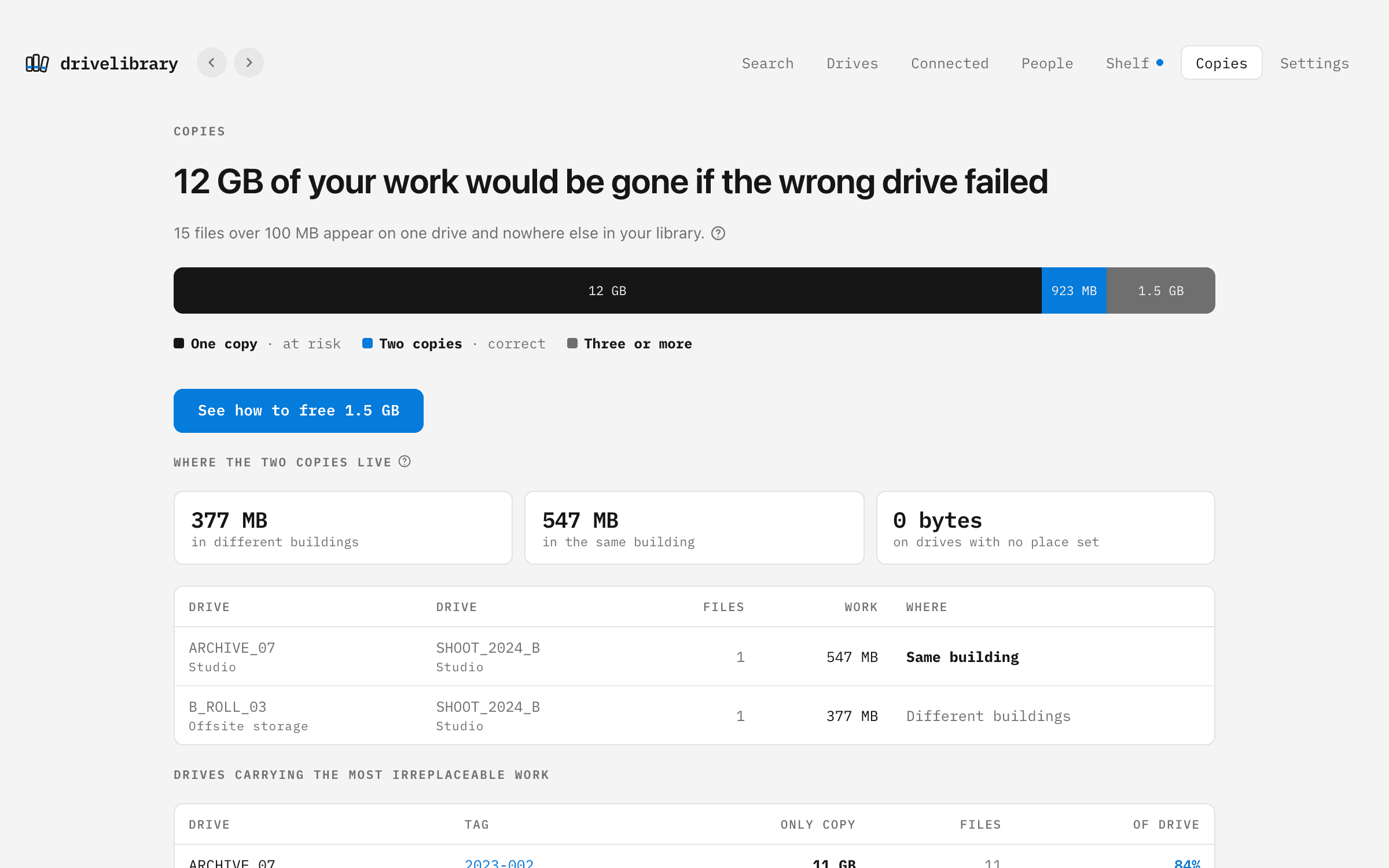
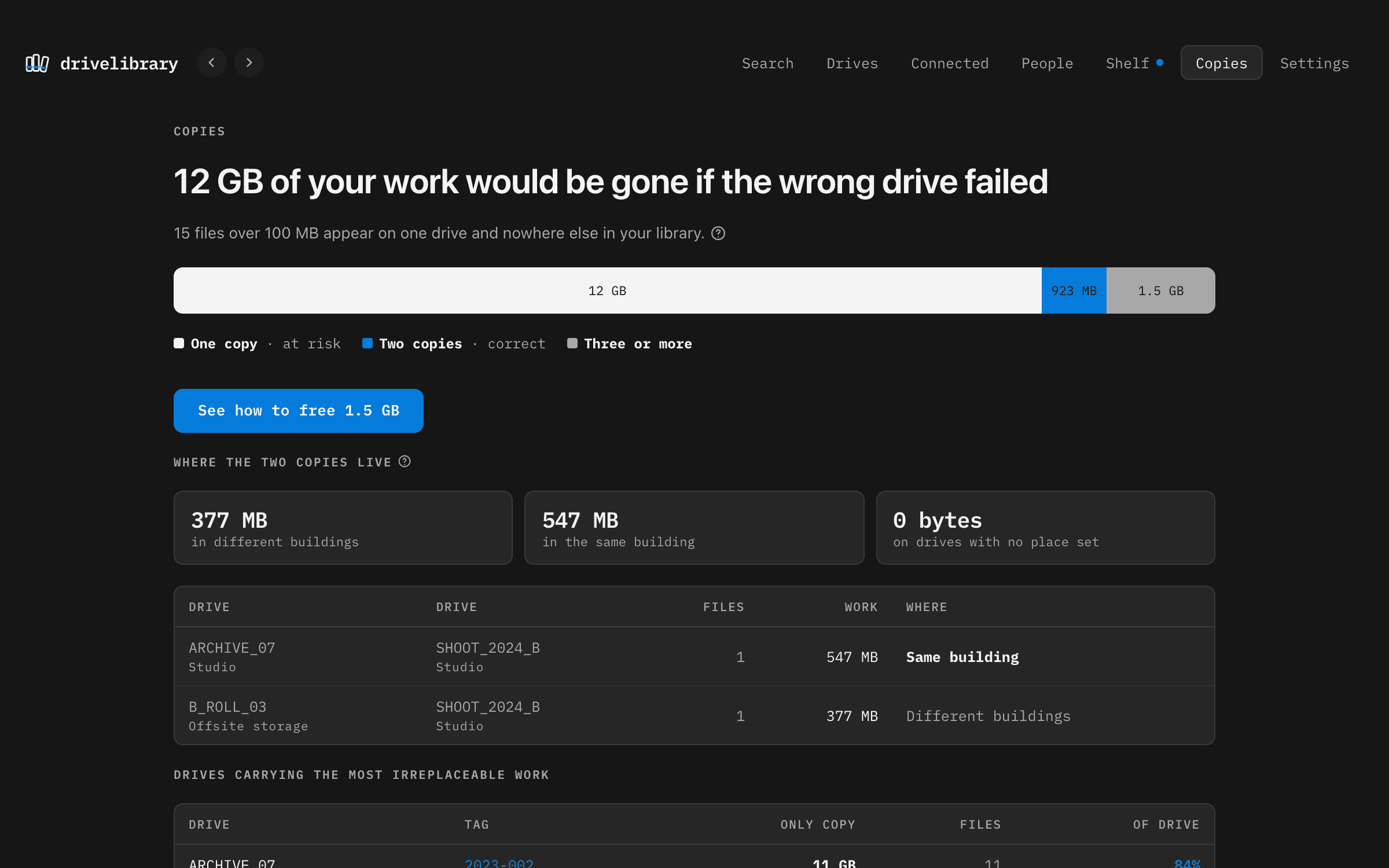
DriveLibrary: What exists once, twice and three times, and where the two copies live

Copies

What exists once, and what exists three times

  • Every file matched across every drive
  • The work that lives on a single disk, so you know what to copy before it fails
  • Two copies in the same building flagged: one fire takes both
  • The space you could get back from copies you do not need
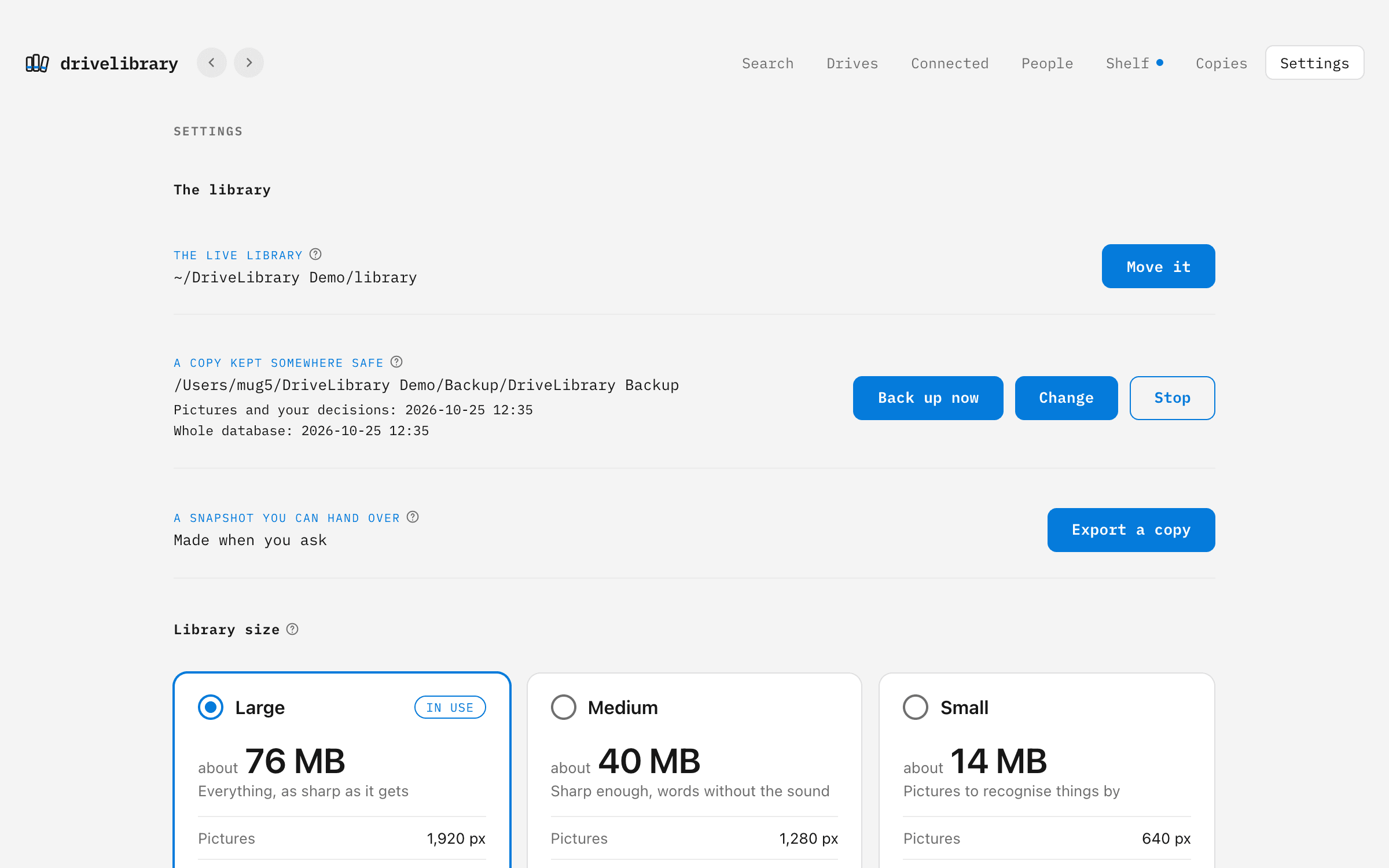
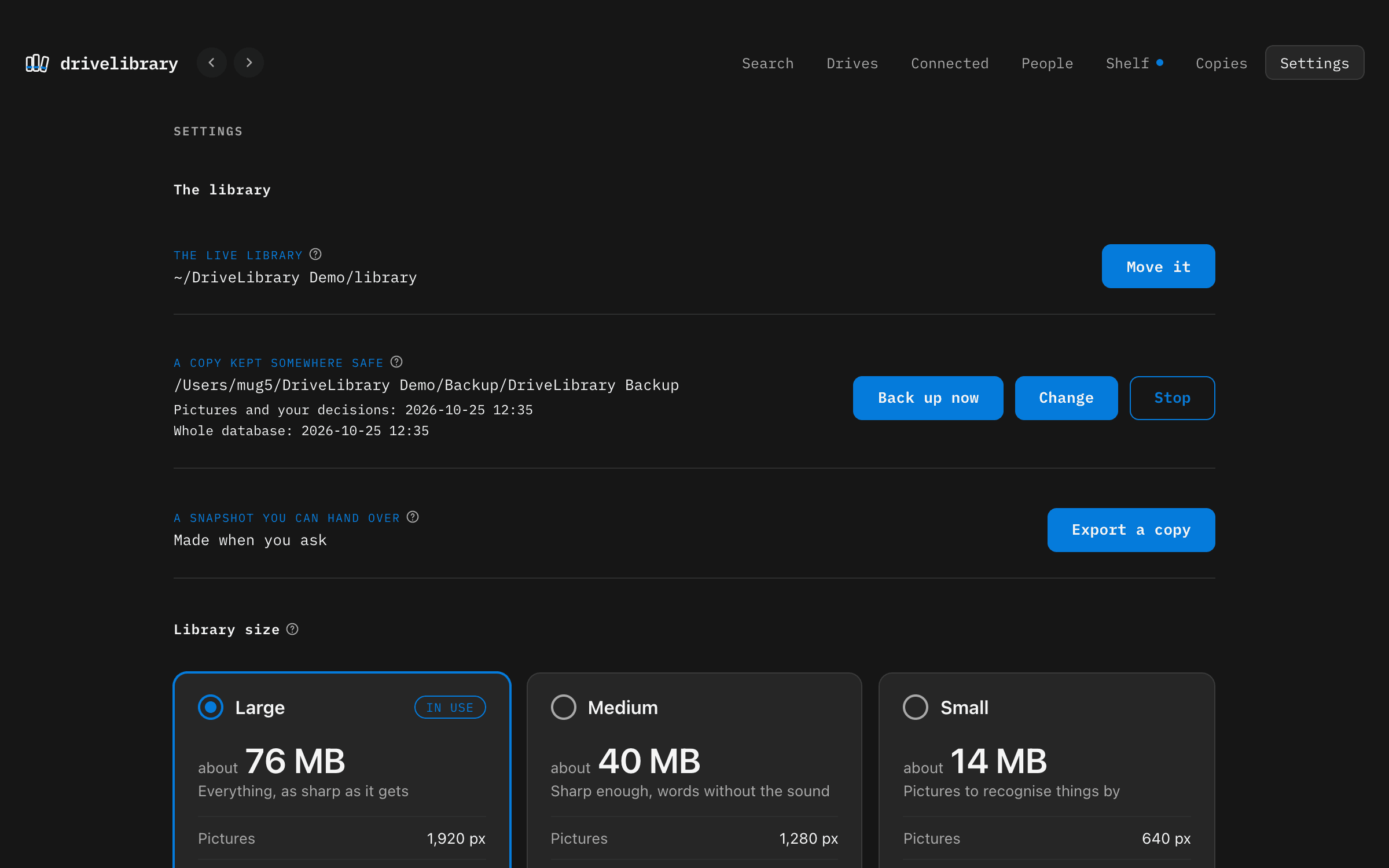
DriveLibrary: The library on this Mac, backed up to a folder you choose

Kept

Yours, and backed up

  • The library lives on your Mac and backs itself up to your NAS or a disk you choose
  • Full-size pictures can live on the backup, with small copies on your Mac for browsing
  • Restored on a new Mac with every tag, place and name intact

Reads

The
files

you

actually

work

with.

Camera

  • R3D
  • BRAW
  • MXF
  • ProRes
  • H.264 and HEVC
  • MPEG-2
  • AVI
  • DXV
  • Image sequences
  • Camera RAW photos
  • Sidecar XML
  • Offload checksums

Projects

  • Premiere Pro
  • After Effects
  • Pro Tools
  • Ableton Live
  • Audition
  • Motion
  • Nuke
  • Motion graphics templates
  • Final Cut XML
  • EDL
  • ALE

Design

  • Photoshop
  • Illustrator
  • InDesign
  • Sketch
  • Lightroom
  • Fonts
  • LUTs

Documents

  • PDF
  • Word
  • Pages
  • Keynote
  • PowerPoint
  • Excel
  • Numbers
  • TextEdit
  • Markdown
  • Plain text
  • Final Draft
  • Fountain
  • Email
  • Web pages
  • Apple Notes
  • LaTeX
  • Subtitles

How
it

works

  1. 01

    Plug in a drive

    DriveLibrary reads it where it is, and never writes to it, moves or changes a thing on it.

  2. 02

    Let it read

    Clips, frames, sound, faces, projects. A big drive takes a while; you can keep working.

  3. 03

    Label it

    It gives the drive its tag, the next in order for its year. Write it on the drive, confirm it, and say where the drive lives.

  4. 04

    Put it back on the shelf

    Everything you need to find it again stays on your Mac. When you need the drive itself, the tag tells you which box.

Your
footage

stays

yours.

DriveLibrary runs on your Mac. Nothing is uploaded: not your footage, not its pictures, not what was said in it, not the faces in it. It reads your drives without changing them, and keeps its own copy safe on the NAS or disk you choose.

Questions

Does it work with the drives unplugged?

That is the point of it. Once a drive has been read, everything DriveLibrary learned stays on your Mac: the pictures, the sound, what was said, who is in it, what is in its projects. Plug the drive in only when you need the file itself.

Can I use it on client footage under NDA?

Yes. DriveLibrary runs on your Mac and sends nothing anywhere: not your footage, not its pictures or transcripts, not the faces in it. We built it for our own client archive, which is full of work under NDA.

Is anything uploaded, or used to train AI?

No. Transcription and face grouping run on your Mac. There is no account and no cloud, and we never see your library.

Is it a backup?

No, it is a library of what is on your drives. It does show you which work exists on only one drive, so you know what to back up, and it keeps its own library backed up to a NAS or disk you choose.

Does it change anything on my drives?

Never. It reads a drive where it is and writes nothing to it. It can also read every byte of a drive to check it still reads, without writing a thing.

Does it work with a NAS?

Yes. Network shares are read like drives and grouped under the NAS they live on, recognised by the box itself, so renaming a share changes nothing.

What Mac do I need?

A Mac with Apple silicon, running macOS 13 Ventura or later.

What will it cost?

We will say when it is ready. People on the list hear first.

Be
first

to

use

it.